

The Ministry of Trade recently facilitated the creation of 104 GS1 barcodes for 39 UMKM players in Bandung, November 2026. This move aims to ease UMKM products into modern retail inventory management. The regulation underscores how critical clean product recording is — from names, brands, to categories — so businesses are ready to compete in an increasingly structured market. Without product data standardization, UMKM struggle to enter formal supply chains because their data isn't compatible with major retail systems.
Many micro, small, and medium enterprises (UMKM) still manage product data manually: notebook records, spreadsheets that don't sync across devices, or pure memory. As a result, product brands often duplicate (e.g., "Indomie" and "indomie" recorded separately), categories are inconsistent (sometimes "Instant Noodles", sometimes "Instant Food"), and when they want to expand to marketplaces or modern minimarkets, product data becomes a bottleneck instead of an asset. A typo as small as a brand misspelling can skew stock reports, cause wrong restock decisions, and erode margins.
This is where Qasir's Edit Brand and Product Category feature comes in. This feature lets you edit or delete brand names and product categories directly from the POS app on your phone, no laptop or technical help needed. Every change instantly reflects across all transactions and reports, keeping product data accurate from POS to sales reports. This means you can fix master data anytime, anywhere — in the middle of a busy store, during a break, or during a late-night stock review.
What Is the Edit Brand and Product Category Feature?
This feature is part of Qasir's Manage Products module that allows business owners to:
- Edit existing product brand names (e.g., fix typos, rebrand, or merge duplicate brands)
- Delete unused brands (products automatically move to "GENERAL" brand)
- Edit product category names for cleaner, more consistent organization
- Delete irrelevant categories (products automatically move to "GENERAL" category)
All changes are made from the Manage Products menu → select product → click the edit icon in the Brand or Category column. The process takes just a few taps on your phone screen. No separate admin mode, no logout/login, no manual sync to other branches — because data is stored in the cloud and syncs automatically to all connected outlets.
How to Edit Brand and Product Category in Qasir (3 Steps)
| Before Using Feature | After Using Feature |
|---|---|
| Duplicate brands (\"Indomie\" & \"indomie\" separate) | Standardized brands, accurate reports |
| Inconsistent categories (\"Instant Noodles\" / \"Instant Food\") | Unified categories, clear report segmentation |
| Data edits need laptop & manual sync | Edit on phone, auto-sync to all branches |
| Dirty data piles up in \"GENERAL\" unmanaged | Filter \"GENERAL\", batch move, clean data |
For product brands:
- Open the Manage Products menu, select the product you want to change the brand for
- Click the Brand column on the product details, then click the edit icon to edit or delete
- Change the brand name and click Save, or click Delete if the brand is no longer used — the product will automatically move to the "GENERAL" brand
For product categories:
- Still in the Manage Products menu, select the product you want to change the category for
- Click the edit icon in the Category column
- Edit the category name and click Save, or Delete to move the product to the "GENERAL" category
No special admin mode needed, no manual sync. Changes apply instantly to POS, sales reports, and stock. If you have multiple outlets, changes automatically sync to all branches because Qasir is cloud-based.
Fits Three Types of Business
- Convenience stores & minimarkets — Frequently add new products from different suppliers; brands and categories must be configurable quickly so per-category stock reports stay accurate during wholesale checks. Suppliers often change brands or packaging, and this feature keeps data clean without mass re-entry.
- Coffee shops & cafes — Beverage menus change seasonally, syrup or coffee bean brands get swapped, "Hot/Cold Drinks" categories need adjustment without re-entry hassle. When switching coffee bean suppliers, just edit the brand in the system — all recipes & stock update automatically.
- Fashion & accessory stores — Collections change by season, local/import clothing brands need quick edits, "Tops/Bottoms/Accessories" categories must stay clean for per-category sales reports. When rebranding a collection, change the brand once — all variants (sizes, colors) update automatically.
Tip 1: Standardize Brand Names from the Start
Set brand naming rules (capitalization, spacing, abbreviations) before bulk entry. Example: always "Coca-Cola" not "coca cola" or "CocaCola". Consistency prevents brand duplication in reports and makes stock filtering easier. Create a simple brand naming style guide and share it with the team entering products — 10 minutes of setup, saves hours of fixing later.
Tip 2: Create Meaningful Categories, Not Overly Detailed Ones
Don't create overly granular categories (e.g., "White Short-Sleeve Plain T-Shirt"). "Plain T-Shirt" or "Tops" is enough. Too many categories just fragment reports and make them hard to read. Merge similar categories, use the edit category feature for periodic consolidation. Target 10-20 categories for small UMKM, 30-50 for medium — enough for report segmentation without overcomplicating.
Tip 3: Use the Delete Feature to Clean Dirty Data
Brands or categories no longer used (typos, discontinued products, supplier changes) should be deleted immediately. Products automatically move to "GENERAL" — from here you can filter and move them to the correct brand/category in batches. Routinely clean "GENERAL" data to keep product master data clean. Schedule monthly cleanup: filter "GENERAL" brands and categories, then move them to the right place. This habit prevents dirty data accumulation that becomes hard to clean later.
FAQ
1. Will products whose brand is deleted disappear from the system?
No. Products automatically move to the "GENERAL" brand. Product data, stock, and transaction history remain intact. You lose zero historical data.
2. Can I edit brands or categories for many products at once?
Currently the feature works per product. For efficiency, use search in Manage Products then edit one by one. Batch edit for brands/categories is under development. Meanwhile, use search filters to group products you want to change.
3. Does changing a category affect past sales reports?
Sales reports follow the product category at the time of transaction. Changing a category today does not alter yesterday's reports — this preserves historical data integrity. Reports stay accurate because they lock the category at transaction time.
4. What's the difference between "GENERAL" brand and "GENERAL" category?
Both are system default containers for products whose brand/category was deleted. You can filter products in "GENERAL" then move them to the correct brand/category. The difference: "GENERAL" brand for brand identity, "GENERAL" category for product type grouping.
5. How do I move products from "GENERAL" to the correct brand/category?
Open Manage Products → filter brand/category "GENERAL" → select product → click edit icon → select/type target brand/category → Save. The process is the same as regular editing, just starting from the default container.
6. Is this feature available in all Qasir plans?
Yes, the Edit Brand and Product Category feature is available in all Qasir plans (Free, Pro, Pro Plus, Outlet) as it's a core part of the Manage Products module.
Business and Finance Tips
- Clean product data = accurate COGS & margins — Consistent brands and categories ensure per-category product profit reports are accurate, so pricing & discount decisions are data-driven, not guesses. When brands duplicate, COGS splits across two brands that are actually the same, skewing margin analysis.
- Ready for modern retail expansion — Minimarkets & marketplaces need standardized product master data (brand, category, barcode). This feature preps your data to GS1 standard without consultant fees. Clean data speeds onboarding to Alfamart, Indomaret, or major marketplaces.
- Reduce hidden stock losses — Products with duplicate brands or wrong categories often "disappear" from stock reports, causing over-ordering (buying stock that actually exists) or stockouts (running out because undetected). Clean master data routinely.
- Automation > manual — Every minute editing brand/category on phone = hours of admin work saved at month-end. Invest setup time upfront, enjoy ongoing efficiency. Team no longer needs to open spreadsheets, filter, edit, save, upload — just open phone, edit, done.
Qasir Features for Manage Products
What the Qasir App Screens Look Like
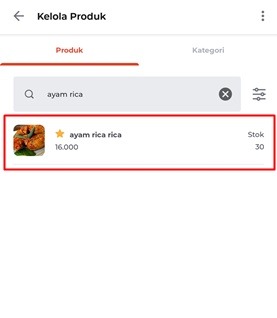
The Manage Products screen displays Brand and Category columns that can be edited directly.
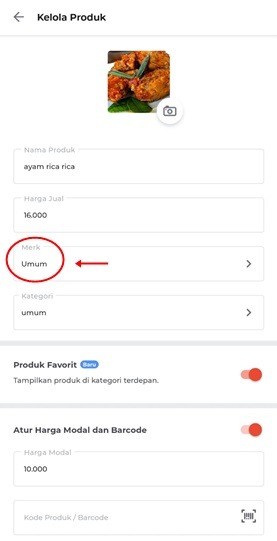
Edit product brand name directly from product details using the edit icon.
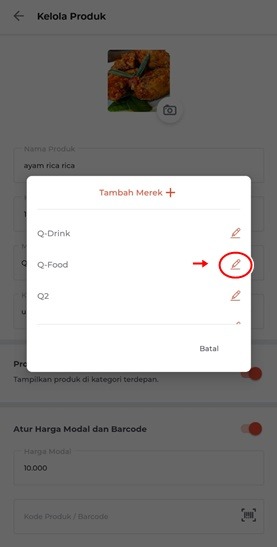
Confirm brand deletion — products automatically move to GENERAL category.
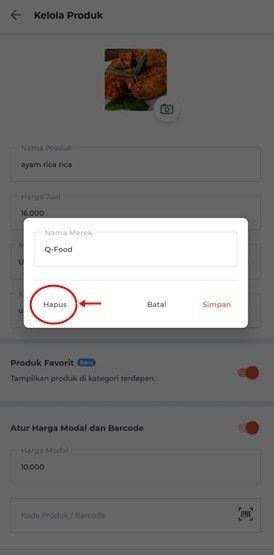
Editing product category is just as easy: click edit icon, change name, then Save.
Manage Products: Centralize All Product Data in One Place
This feature manages all product data: name, selling price, cost price, category, brand, stock, flexible units (pcs, kg, grams, dozens), barcode, photos, up to variants — all complete in one place. Brand and category changes instantly reflect across all modules: POS, reports, stock, even purchasing. Read details at Manage Products Qasir: Manage Stock, Prices & Variants.
Product Variants: Manage Many Variants Without Re-entry Hassle
Products with many variants (sizes, colors, flavors) are managed under one parent product. Change brand or category at the parent, all variants update automatically — efficient for fashion stores, cafes, and minimarkets. Details at Manage Products with Many Variants Easier with Variant Feature in Qasir.
Product Categories: Organize Product Hierarchy for Clearer Reports
Create, edit, and delete product categories per business needs. Per-category sales reports become strategy references: which categories sell best, which have thin margins, which need promotion. Read Product Category Feature in Qasir: Neater Product Service Management Solution.
Raw Materials & Recipes: Auto-Calculate COGS from Product Composition
For F&B businesses, this feature auto-calculates Cost of Goods Sold (COGS) from raw material composition. Change a raw material brand, COGS updates automatically — margins stay accurate. Details at Raw Materials & Recipes Menu Now Accessible Directly in Qasir App.
Stock Turnover: Identify Slow-Moving Products per Category/Brand
This feature shows stock turnover speed per product, brand, and category. You know which brands are slow-moving, which categories need promotion, and which stock is stagnating. Read Monitor Stock Turnover Easier in Qasir Prevent Stagnant Stock.
Conclusion
Brands and product categories aren't just labels — they're the backbone of accurate business data. Qasir's Edit Brand and Product Category feature gives you full control over product master data without technical complexity. From convenience stores to fashion boutiques, this feature ensures stock, sales, and margin reports always reflect ground reality. Clean data today, right business decisions tomorrow.
Manage Products Easier with Qasir Features
- Manage Products — centralize name, price, brand, category, stock, barcode, variants in one app
- Product Variants — manage hundreds of variants (sizes, colors, flavors) from one parent product
- Product Categories — organize product hierarchy so per-category sales reports read clearly
- Raw Materials & Recipes — auto-calculate COGS, margins stay accurate when material brands change
- Stock Turnover — identify slow-moving products & stagnant stock per category/brand
If anything about how to edit brands or product categories is still unclear, the Qasir Customer Happiness Team is ready to help. Just open the Help feature in the Qasir app or website, then start Live Chat. You can attach screenshots or videos for more precise answers. Read the full guide at guide to contacting the Qasir team.
Download Qasir free on the Play Store and manage your brands and product categories today.