
Cashier app providers in Indonesia have started tailoring their services to each business sector, from food and beverage to retail and services, as reported by Republika. This means more and more business owners are moving from manual records to digital systems. But there is one situation that rarely gets discussed: what if the data in your app has been messy from the start? A wrongly entered business name, piling-up trial transactions, or old stock that no longer matches reality.
Fortunately, you do not need to delete the app or create a brand-new account. In Qasir, the reset Qasir account data feature in the dashboard lets you update your business information while clearing certain data until it is clean like new. The process is guarded by two layers of security: your account PIN and an OTP code sent via SMS to the owner's phone number.
This article explains how the feature works, the reset steps, and tips so you do not lose important data that you actually still need.
What Is the Change and Reset Account Data Feature in the Dashboard?
This feature is in the Qasir web dashboard, the business management page you can open from a browser on your phone or laptop. From the dashboard, you can do two things related to your account data. First, change your business information such as business name, business type, and account email through the Business Information menu. Second, reset part or all of your business data as needed.
There are four reset options available. Reset Transaction Data clears your entire transaction history back to zero. Reset Product and Transaction Data deletes your product list along with all transactions. Reset Cash Management Data removes all cash in and cash out records, which also affects your profit calculation. And Reset All Data returns the account to like-new condition, including all outlets in it. Here is a quick comparison of all four:
| Reset Type | What Gets Deleted | Best Used When |
|---|---|---|
| Reset Transaction Data | All transaction history | Trial transactions piled up and the product list is correct |
| Reset Product and Transaction Data | Product list and all transactions | The old product list no longer matches reality |
| Reset Cash Management Data | All cash in and cash out records | Old cash records are messy and you want a clean start |
| Reset All Data | Everything including all outlets | You want to start over like a brand-new account |
Because the data cannot be recovered, Qasir applies layered verification. After choosing the reset type and pressing the Reset button, you are asked to enter your account PIN, then continue to OTP verification via SMS to the owner's number within 60 seconds. Only after both verifications pass does the reset run. You can read the full details in the official guide to changing and resetting account data in the Qasir dashboard.
How to Change and Reset Qasir Account Data in the Dashboard
The process is quite short and you can do it yourself without technical help. Here is the order of the steps:
- Open the Qasir dashboard through a browser on your phone or laptop, then log in with the owner account. If you do not know how yet, read the guide to logging in to the Qasir dashboard first.
- After logging in, click the profile photo icon in the top right corner of the screen, then select Business Information.
- To update your data, change the Business Name, Business Type, or Account Email fields as needed, then click Save.
- To reset, choose one of the reset types: transactions only, products and transactions, cash management, or all data.
- Enter your account PIN, click Continue, then enter the OTP code sent via SMS to the owner's number within 60 seconds.
- Click OK when the notification appears that your data has been successfully reset.
One important note: the reset will delete all outlets in the account, so this action truly starts everything from scratch. If your business has branches, make sure everyone involved has agreed before pressing the Reset button.
Fits Three Types of Business
- A coffee shop in Yogyakarta - previously recorded in a notebook, moved to Qasir with messy trial data, so it could reset transactions only to keep reports clean from the first serious day.
- A grocery store in Makassar taken over by the second child - changed the business name and email in Business Information without having to create a new account and losing the cashier app.
- A motorcycle repair shop in Semarang - misconfigured service products and initial stock, so it used the product and transaction reset so the list of services and goods matches the actual condition of the workshop.
Tip 1: Check and Record Important Data Before Resetting
A reset is permanent, so treat it like cleaning out a warehouse: sort first, throw away later. Before pressing the Reset button, review your sales reports and cash records to check whether there is still useful data, such as a well-organized product list or customer debt notes. Save the summary outside the app, for example in a spreadsheet or ledger, so it can be reused after the reset is done.
Tip 2: Choose the Reset Type That Matches Your Need, Do Not Jump Straight to All Data
Those four reset options are designed in tiers for a reason. If the problem is only piling-up trial transactions, resetting transactions alone is enough and your product list stays intact. If the product list is also messy, then move up to the product and transaction reset. Reset All Data should be your last resort, namely when you truly want to start your business in the app from zero, because all outlets get deleted along with it.
Tip 3: Make Sure the Owner's Number Is Active and Ready to Receive the OTP
The OTP verification is sent via SMS to the owner's number and is only valid for 60 seconds. If that number is no longer active, its SIM card is not nearby, or the signal is poor, the reset process will stall halfway. Before starting, make sure the owner's phone is ready to receive SMS, and do the reset during a quiet hour so you are not rushing when entering the code.
FAQ About Resetting Qasir Account Data
Can reset data be recovered?
No. After the reset process is complete, your transaction, product, cash, or all data including outlets is truly deleted and cannot be restored. That is why you are asked to enter your PIN and OTP code before the reset is run.
Does resetting data delete my Qasir account?
No. Only the business data inside the account is deleted. Your account remains and can be used again right away. If you want to secure your device sessions, you can log out of your account after you finish.
Can an employee perform the data reset?
Preferably not. The data reset is done from the dashboard with the owner account, and the OTP code is sent to the owner's number. So it is indeed designed so that only the business owner can make the reset decision.
What is the difference between resetting transactions and resetting cash?
Reset Transaction Data clears your entire sales history. Reset Cash Management Data deletes cash in and cash out records separately, and because the profit calculation is tied to cash, the profit figures in your reports change as well. Choose according to which part of the data you actually want to clean.
What if I only want to change my business name or email?
No reset is needed. Simply open the Business Information menu from the profile photo icon in the top right corner of the dashboard, change the Business Name, Business Type, or Account Email, then click Save. The changes are saved immediately without deleting any data.
Business and Finance Tips
A reset is not just a technical matter, but a business management decision. These principles are useful before and after you tidy up your data:
- Separate personal and business data. Use a dedicated email for the business from the start, so reports and notifications do not get mixed up with personal matters, especially after an ownership change.
- Treat old data as an archive, not a burden. Before deleting it, summarize sales and cash data from past periods as a benchmark for assessing your business progress after the reset.
- Schedule regular data audits. Once every few months, check whether your product list, stock, and transactions still match real conditions, so small problems do not pile up until a big reset is needed.
- Involve disciplined daily recording. The habit of recording income and expenses every day keeps the data in your app always usable, so a reset becomes a rare, planned step rather than a recurring panic.
Qasir Features for Managing Business Data
Besides changing and resetting account data, Qasir has a number of supporting features that keep your business data tidy from day one, so the need for a reset becomes increasingly rare:
Data Alignment
This feature keeps your sales and stock data on the device always matching the server. It is useful so that the data you see in the dashboard is consistent with what is recorded in the cashier app, with no discrepancies after switching devices.
Manage Products from the Dashboard
Products can be added, edited, and organized into categories directly from the dashboard with its larger screen. For businesses with many types of goods, tidying up the product list is much faster done here than on a phone.
Sales Reports
Sales reports summarize your business performance per period, so you can compare conditions before and after the reset as a clean starting point for the next evaluation.
What the Qasir App Screens Look Like
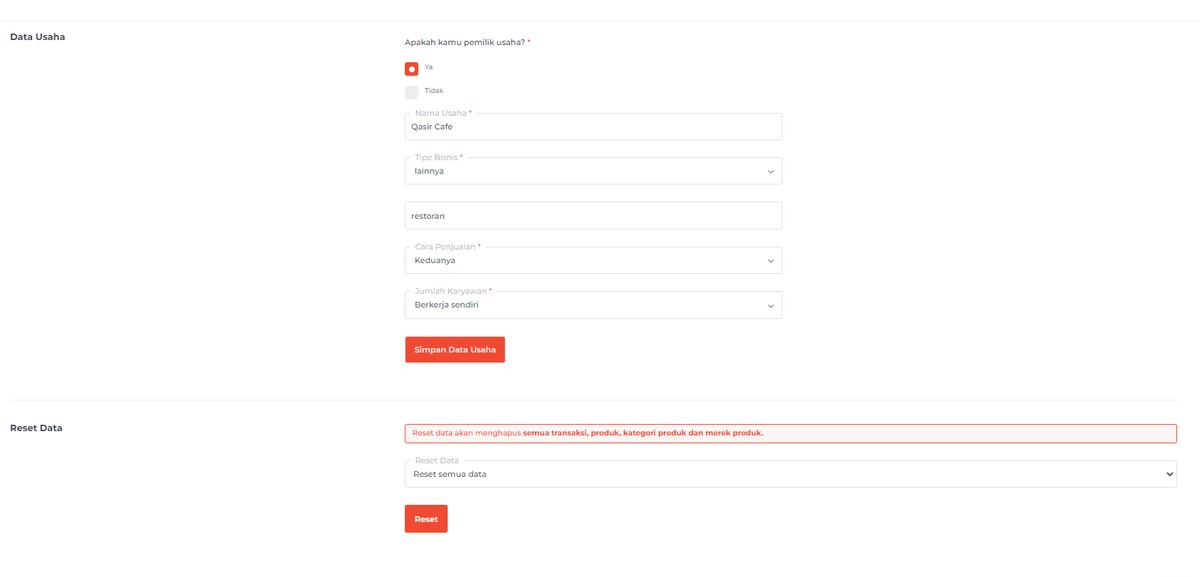
The Business Information form in the Qasir dashboard for updating business name, business type, and account email.
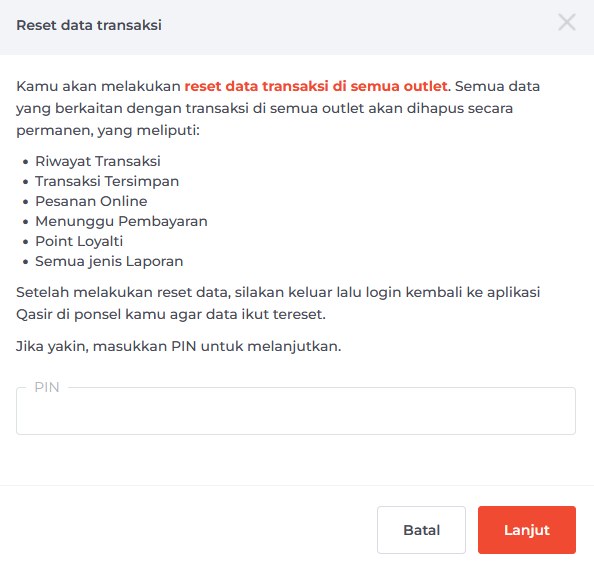
The confirmation window that appears before the reset, complete with a warning that the data cannot be recovered.
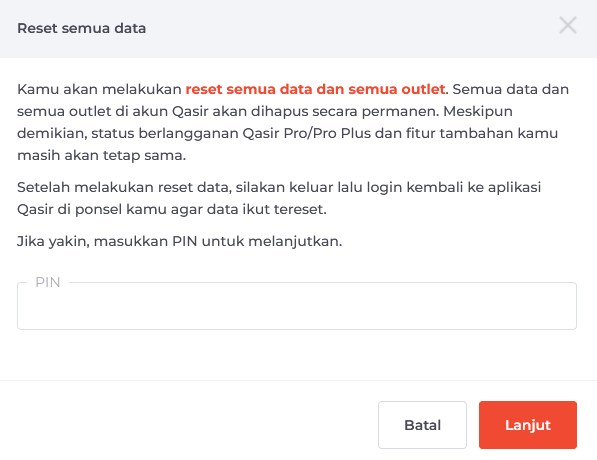
The PIN verification page before the data reset process is run.
Conclusion
The change and reset account data feature in the Qasir dashboard gives business owners full control over their business data: update business information in a matter of seconds, or clean the data until it is like new if it is indeed necessary. PIN and OTP verification ensures that this big decision can only be made by the owner. Most importantly, a reset is a planned step, not a panic move: check your important data, choose the right reset type, and make sure the owner's number is ready to receive the OTP.
Ask the Qasir Team If Something Is Still Unclear
If you are still unsure which reset type fits your business condition, do not force yourself to figure it out alone. The Qasir Customer Happiness team is ready to help via Live Chat. There are also several features closely related to this topic that are worth exploring:
- Change user profile in the dashboard to update the owner's name, email, and account PIN.
- Log out of your Qasir account to secure sessions on devices that are no longer in use.
- Log in to the Qasir dashboard to manage your business data from a phone or laptop browser.
- Recording income and expenses so your business cash data stays tidy every day.
It is easy: go to the Help feature in the Qasir app or website, then start a Live Chat. You can also check the guide on how to use the Live Chat feature in the Qasir app to contact the Qasir Team. Download Qasir for free on the Play Store or App Store, and start managing your business data more tidily today.