

Many small business owners in Indonesia start digitalizing their cashier operations with the easiest thing to find: their own smartphone. Unfortunately, that device is often not the most suitable one for daily transaction work. So the specifications are not a trivial technical detail: the Qasir device specifications you choose determine how smoothly every sale is recorded each day.
The symptoms are easy to spot. A cashier app that used to run smoothly starts lagging during rush hour, receipts come out half-printed, or sales numbers on one device no longer sync with records on another. All of this traces back to one fundamental thing: the device must meet the minimum requirements for the app to run reliably.
Fortunately, Qasir's official rules on this are summarized in a single help page anyone can read. From the Android version, memory size, storage space, to cashier machines that have passed Qasir's own testing, this article compiles all of it together with real-world examples from several types of businesses.
You can read the official details in Qasir's help article on supported device specifications.
Qasir App Supported Device Specifications
Qasir is an Android-based cashier system, so the entire transaction workflow runs on Android devices. To keep everything smooth, there are minimum requirements to meet. The same rules apply to both smartphones and Android tablets.
Android Smartphone
- Minimum OS Android 8
- Minimum RAM 3 GB
- Minimum storage 32 GB
Android Tablet
- Same minimum specifications as an Android smartphone
- For landscape display, minimum screen size 7 inches with 1280 x 800 resolution
- Adjust the display size setting on the tablet so it is not too large when using landscape mode
Android Cashier Machine
For stores with high transaction volume, an Android cashier machine with an integrated printer that has passed Qasir's testing is recommended, such as the Iware Android IW-X2 and Bellav Z91. Both are available through Qasir's marketplace store on Tokopedia, or you can ask the Qasir team directly via the WhatsApp number listed on the help page.
If your current device already meets the requirements above, the Qasir app can be used right away to process transactions, record sales, and monitor business reports.
| Device Type | Minimum Requirement | Notes |
|---|---|---|
| Android phone | Android 8 or newer | At least 3 GB of RAM |
| Storage | 32 GB minimum | Leave room for transaction data |
| Tablet | 7-inch screen or larger | Minimum 1280 x 800 for landscape view |
| Cash register | Iware IW-X2 and Bellsav Z91 | Both are already tested |
How to Check Your Device Before Using the Qasir App
No special tools are needed. These four quick checks are enough to confirm a device is ready to use.
- Check the Android version. Open the device settings, then the About Phone menu. Make sure the Android version is at least 8, because older versions no longer support the Qasir app.
- Check RAM and storage. On the same page, confirm the memory is at least 3 GB and free storage is at least 32 GB. Storage that is almost full is one of the most common reasons an app slows down when opening the product list.
- Connect the printer. Turn on the receipt printer first, then pair it through the Bluetooth settings or connect it with a cable. For Android cashier machines with an integrated printer, simply open the app and select the available device.
- Test print a receipt. Run one trial transaction and print the receipt. Check the store name, item list, and total. If anything needs adjusting, change it through the receipt settings menu inside the app.
Once these four steps run smoothly, the device is ready for daily use. You can double-check the technical details in the supported device specifications page.
Fits Three Types of Business
This feature is not limited to one type of business. Here are three examples so you can match it to your own store.
- Coffee Shop in Gayo — A coffee shop in Gayo usually has a busy counter during certain hours, plus one smartphone that also receives extra orders.
- Motorcycle Workshop in Solo — A motorcycle workshop in Solo handles non-uniform items, from routine service to component replacements costing tens of thousands of rupiah.
- Grocery Store in Surabaya — A grocery store in Surabaya sees small but very frequent transactions.
3 Important Tips Before Replacing a Device
These three tips help you pick the device that best fits daily cashier operations without buying an expensive one first.
Tip 1: Make Sure the Device Has Enough Headroom
Check the device condition before installing the app
The minimum specifications above are a floor, not a performance guarantee. A smartphone with a full memory, little free storage, or an outdated operating system can feel heavy every time a new product is added. Before installing the Qasir app, clean up storage and close unused apps. If the device already feels slow for other activities, the chances of a cashier app running smoothly get smaller too.
Also consider how long the device has been in use. Devices used for more than three years often genuinely need replacement or a system update, not a lighter app.
Tip 2: Pick a Printer That Matches Your Store
Bluetooth printers and integrated cashier machines
A Bluetooth receipt printer is the most flexible option for a small eatery because it only needs one Android device and no extra cables. For stores with long queues or more than one cashier, an Android cashier machine with an integrated printer such as the Iware Android IW-X2 or Bellav Z91 saves counter space. Both have passed Qasir's testing, so there is no guessing whether the printer will work with the app.
Test the printer connection before the store opens. Print one trial receipt and check the store name, item list, and total. If the printed receipt looks neat, the device is ready for daily transactions without any further changes.
Tip 3: Use a Tablet When the Warehouse and Cashier Counter Are Apart
7-inch tablet in landscape mode
A 7-inch tablet with 1280 x 800 resolution in landscape mode gives much more room to see the product list and the shopping cart at the same time. For stores with a back warehouse and a front counter, a tablet also makes it easier to move items using a barcode scanner. The tablet's touch screen stays responsive for the cashier app, just like on a smartphone.
Adjust the display size on the tablet so the product table and transaction buttons stay visible on one screen. The tablet's technical details are listed in the supported device specifications for the Qasir app.
FAQ: Qasir Device Specifications
Can an old smartphone still run the Qasir app?
Yes, as long as it meets three basic requirements: Android version at least 8, at least 3 GB of RAM, and at least 32 GB of storage. If any one of these is not met, the device is simply too heavy for a cashier app and should be replaced.
Which receipt printers work with the Qasir app?
Bluetooth receipt printers compatible with Android can be used, as well as printers connected by cable. For a ready-to-use cashier setup, the Qasir team recommends Android cashier machines with integrated printers that have passed testing, such as the Iware Android IW-X2 and Bellav Z91. Printing one trial receipt before opening is the simplest way to confirm the printer is connected properly.
Is a tablet better than a smartphone for a cashier?
A tablet fits better when you need to see many products at once, scan items on shelves far from the counter, or serve long queues. The minimum requirements for a tablet are the same as for an Android smartphone, plus a minimum 7-inch screen and 1280 x 800 resolution for landscape display.
Why does the app lag even though the specifications are met?
Nearly full storage and memory consumed by many other apps are the two most common causes. Close unused apps, clear temporary data, and move old photos or videos elsewhere. If the device already feels slow for everyday use, replacing it with a more capable unit is usually more economical than struggling on with an old one.
Business and Finance Tips
Separate operating cash from business capital
Many stores mix capital money with sales revenue in one pocket, making it hard to know whether the business is profitable. Recording cash in and cash out neatly every day separates the two. That way, the amount of money that can actually be used for personal needs becomes clear. How to start this kind of record is explained in the article on starting to record income and expenses.
Calculate profit from sales data, not guesswork
Big revenue does not necessarily mean big profit, because purchase costs, shipping fees, and other operational costs can eat up a large part of the income. Complete sales data helps calculate profit in a way that can be audited. The discussion is in the article on calculating profit from busy sales.
Keep receipts and sales records as proof
Every transaction recorded in the app produces a digital receipt that can be sent straight to the customer. An archive of receipts helps when there is a cash discrepancy or a customer claim, and there is no need to dig through paper files in a drawer. For businesses that need more detailed records, the sales report in the app is enough for a first step.
Update stock regularly
A fast device and a light app will not solve the problem if inventory data is messy. Do stock-taking every closing time or weekly, then adjust the stock quantities in the app. Best-selling items can be observed from the sales report so restocking from suppliers can be done on time.
Qasir Features for UMKM Cashier Devices
Digital cashier app
The digital cashier app records transactions directly from an Android device without a paper notebook, so daily revenue is recorded automatically and can be viewed at any time.
Digital receipt printing
The digital receipt printing feature sends payment proof to customers via WhatsApp or other channels, so receipts do not get lost and no printed paper is needed as proof.
Manage products, prices, and stock
The manage products, prices, and stock feature keeps the item list, prices, and stock quantities in one place, so cashiers do not have to memorize prices and stock discrepancies are easier to spot during stock-taking.
Bluetooth receipt printer
A Bluetooth receipt printer connects to the Android device without cables, so one device handles both transactions and receipt printing.
Sales reports and cash recap
Sales reports and cash recap show sales, cash in, and cash out in a daily summary, so the cash check at closing time does not depend on memory.
What the Qasir App Screens Look Like
The screenshots below come straight from the Qasir app, so you know exactly what you will see while using these features.
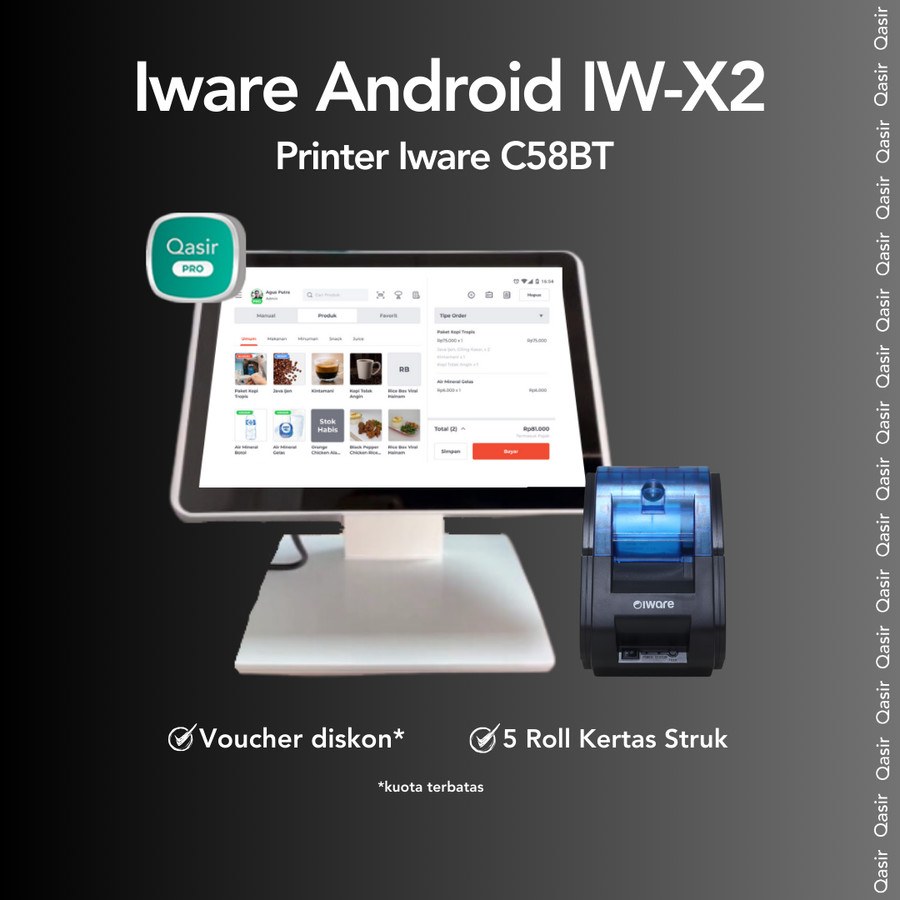
Qasir on a cash register tablet: transactions, products, and receipt printing in a single device.
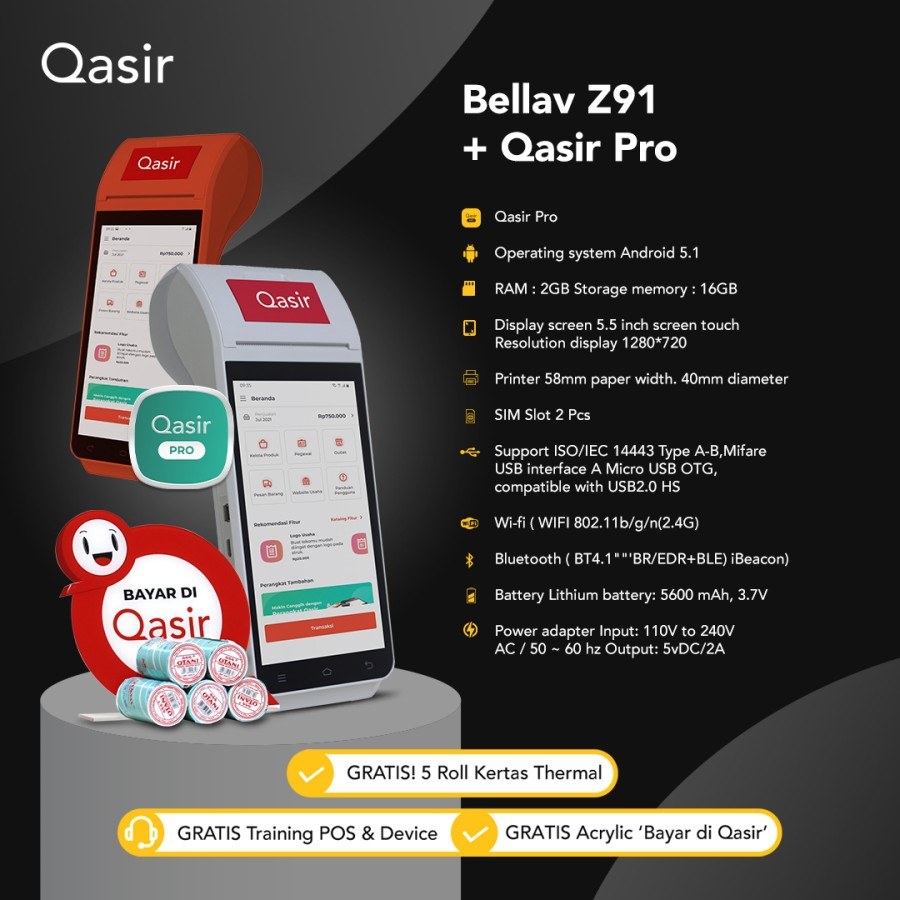
Bellsav Z91 with Qasir Pro: a proven cash register that runs the app smoothly.
Conclusion
The device specifications that support the Qasir app are actually simple: Android version 8 or newer, at least 3 GB of RAM, and at least 32 GB of storage. The same requirements apply to tablets, plus a minimum 7-inch screen and 1280 x 800 resolution for landscape display. For high-traffic stores, an Android cashier machine with an integrated printer that has passed Qasir's testing is the most practical choice.
What is often skipped is the step of checking the device before using the app. Five minutes to check the Android version, memory, storage, and one test-printed receipt can save hours of troubleshooting during rush hour. If the device feels sluggish, the problem is usually not the app but the device that is due for replacement.
Most importantly, a compliant device does not have to be expensive. Many small businesses run well on an Android smartphone they have used for three years, plus one Bluetooth receipt printer. What is needed first is neatly recorded sales data; larger devices can follow as needs grow.
Ask the Qasir Team If Something Is Still Unclear
- The digital cashier app records transactions on an Android device, so daily revenue is recorded without a paper notebook.
- Digital receipt printing sends payment proof to customers, so receipts are harder to lose.
- A Bluetooth receipt printer connects without cables, so one device handles transactions and receipt printing.
- Manage products, prices, and stock in one place, so price typos and stock discrepancies are easier to check.
- Sales reports and cash recap show a daily summary, so closing time does not require recounting from paper notes.
If something about using this feature is still unclear, the Qasir Customer Happiness team is ready to help. Open the Help feature in the app or on the Qasir website and start a Live Chat. You can attach a screenshot or a video so the answer matches your case.
The full steps are in the guide to contacting the Qasir team. Ready to try it yourself? Download Qasir for free on the Play Store or the App Store.