

Digitalization of Indonesian MSMEs keeps accelerating. According to the Ministry of MSMEs, around 25 million business owners have completed onboarding on digital platforms, out of roughly 50 million MSMEs nationwide. Yet that figure hides a simple fact: many micro business owners are using a cashier app for the first time and often get stuck on something small, such as not knowing where to ask for help when a problem appears.
The problem sounds trivial but it is real. When stock suddenly goes out of sync or a receipt fails to send, many business owners simply stay quiet and fall back to their old habits instead of looking for help. Qasir already has the fastest help channel built in: the Qasir live chat feature, right inside the app. Through this feature, you can talk directly with the Qasir Customer Happiness Team without switching to email or social media.
This article explains what the Qasir live chat feature is, how to use it step by step, and tips to get every issue answered faster.
What Is the Qasir Live Chat Feature?
The Qasir live chat feature is a direct communication channel inside the Qasir app that connects users with the Qasir Customer Happiness Team. Every question and complaint about using the app, from product, stock, and transaction report issues to account problems, can be sent through this feature.
What sets it apart from an ordinary message is the context. You are already inside the app when the problem happens, so you can attach a screenshot of the problematic page, a supporting file, or even a short video of the issue. The Customer Happiness Team can understand your problem accurately without guessing over the phone.
How to Use the Qasir Live Chat Feature
Accessing the live chat requires no complicated setup. Here are the steps in plain language:
- Open the Qasir app, then choose the Help menu on the sidebar.
- Tap Start a conversation to begin chatting with the Qasir Customer Happiness Team.
- Write your question or issue. If needed, tap the image or clip icon to attach a screenshot, file, or supporting video.
- Alternatively, try the Find Answers search column first with keywords like Products, Stock, or Transaction Reports.
- If the short answers are not enough, tap See full results to open the Help Center website at bantuan.qasir.id in your browser.
The complete step-by-step guide is also available in the official Qasir live chat feature article in the Help Center, so you can save it and read it again anytime.
Example Issues and How to Report Them via Live Chat
| Issue | Information to Attach | Expected Answer |
|---|---|---|
| Stock out of sync | Screenshot of the stock page and time of the issue | The cause of the discrepancy and how to fix it |
| Receipt failed to send | Screenshot of the transaction page and receipt number | Transaction status and how to resend the receipt |
| Forgot account PIN | The registered account email | A safe PIN reset guide |
Fits Three Types of Business
The Qasir live chat feature is useful for almost any type of business, especially one where the owner handles everything alone and has no IT team. Here are three illustrations:
- A coffee shop in Gayo - the owner can immediately ask how to check the daily sales report without waiting for someone tech-savvy to be around.
- A motorbike repair shop in Solo - when the service list is hard to update, the issue can be reported via chat with a screenshot attached, so the fix is more on target.
- A grocery store in Makassar - a cashier using the app for the first time can ask in real time during working hours without disturbing the customer queue.
Keep in mind that these three examples are illustrations of usage opportunities, not promised results. The benefits you feel still depend on the conditions and habits of each business.
Tip 1: Write Your Issue Specifically in the First Message
The habit that most determines how fast you get an answer is how you write the first message. Avoid messages like "the app is broken" because the support team has to ask follow-up questions to understand the context. State which feature you were using, what happened, and when it started. A better example: "The stock menu will not save since this morning, I have tried logging out and back in." With details like that, the Customer Happiness Team can trace the cause right away without back-and-forth questions.
Tip 2: Use the Find Answers Column Before Chatting
Not every issue has to wait for a chat reply. Most common questions about products, stock, and transaction reports already have written guides in the Help Center. Try typing your keyword in the Find Answers column first. If the short answer is not enough, continue to the live chat with the information you already have. These two steps make your chat conversation more focused and save time for both sides.
Tip 3: Attach a Screenshot or Supporting Video
One picture is often clearer than five long sentences. If the issue is a strange display, mismatched numbers, or a stuck step, attach a screenshot using the image or clip icon in the chat column. For sequential issues, record a short screen video and send it as an attachment. The Customer Happiness Team can see exactly what you see, so the solution they give is more accurate and you do not have to translate technical terms yourself.
FAQ About the Qasir Live Chat Feature
Is the Qasir live chat feature paid?
The Qasir live chat feature is available to Qasir app users and can be accessed through the Help menu. For the latest information about plans and services, always check the official Qasir pages, as terms may change.
What hours can I use the live chat?
You can open the live chat inside the app at any time. When the Customer Happiness Team is offline, the message you send stays saved and can be answered in the next operating hours. For non-urgent issues, you can also use the Find Answers column or send an email to hello@qasir.id.
Can I send a screenshot or video through the live chat?
Yes. The chat column has an image or clip icon that works for attaching a page screenshot, a supporting file, or a short video showing the issue happening in the app.
What is the difference between live chat and emailing hello@qasir.id?
Both connect you to the Qasir Customer Happiness Team. Live chat is better for issues happening right now because the context comes straight from inside the app and can include attachments. Email is better for non-urgent matters or ones that need a long written trail.
Business and Finance Tips
Selling with digital support does not mean every problem disappears. The following principles help your business stay organized while relying on an app:
- Record operational issues the way you record expenses - small recurring issues are actually hidden costs. The habit of recording business income and expenses can also be used to log app issues along with when they happened, so the pattern becomes clear.
- Use waiting time for productive work - while waiting for a chat reply, review your customer data, tidy your product list, or adjust stock. Downtime can be used for other light work.
- Use sales data as discussion material - when asking about report features, prepare numbers from your customer and sales data records first, so your question is specific and the answer can be used right away.
- Do not let small issues grow big - a recording mistake ignored for months can mess up your financial reports. Report issues as early as possible through live chat.
Qasir Features for Live Chat and User Support
Besides the live chat itself, Qasir has several supporting features that make asking questions and getting help even smoother. Here are three of them:
Live Chat Right in the Help Menu
This feature is the main gateway for communicating with the Qasir Customer Happiness Team from inside the app. The benefit for business owners: an issue happening right now can be reported immediately, without switching apps or waiting for phone service hours.
Screenshot, File, and Video Attachments
The attachment feature lets you send supporting visual evidence while chatting. The benefit: your issue explanation becomes more accurate because the support team sees your app condition directly, instead of only reading a description.
Find Answers Column to the Help Center
This search column connects the app with thousands of guide articles at bantuan.qasir.id. The benefit: common questions can be answered by yourself in seconds, even before you finish writing a chat message.
What the Qasir App Screens Look Like
Here is what the help and live chat features look like inside the Qasir app:
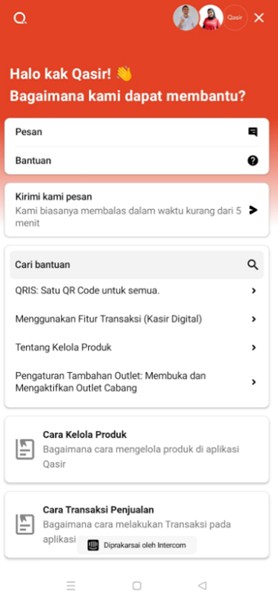
The Help menu in the Qasir app sidebar is the gateway to the live chat feature.

The page for starting a conversation with the Qasir Customer Happiness Team.
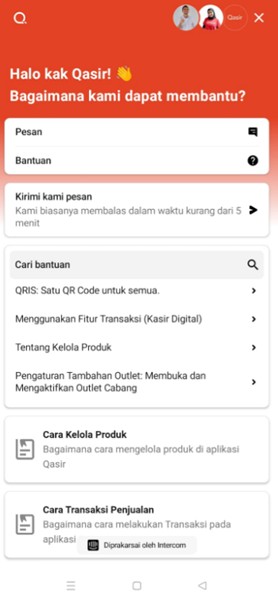
The chat column includes a file attachment icon and a quick answer search.
Conclusion
The Qasir live chat feature is the fastest help channel already built into the app. Through the Help menu, you can talk directly with the Qasir Customer Happiness Team, attach screenshots or videos of your issue, and use the Find Answers column for questions that already have written guides. For a small business without a technical team, the willingness to ask through this feature is a small habit that keeps operations running. If you are just starting with Qasir, learn the guide to starting a business with Qasir first, then continue with how to register a Qasir account and logging in to the Qasir dashboard so your first steps are solid.
Ask the Qasir Team If Something Is Still Unclear
If something still feels unclear about how to use the Qasir live chat feature or any other feature, the Qasir Customer Happiness Team is ready to help. Just open the Help feature in the app or on the Qasir website, then start a Live Chat. Feel free to attach a screenshot or video so the answer is more accurate. Here are some Qasir features that are often asked about through live chat:
- Help Live Chat - talk directly with the Qasir team from inside the app about anything related to usage.
- Sales Reports - see daily to period sales summaries so you know your business condition.
- Stock Management - record and adjust product quantities so your inventory stays accurate.
- Digital Cashier - record cashless and cash transactions quickly through one app.
- Transaction History - trace back every transaction that has been recorded.
There is also a guide to contacting the Qasir team with complete step-by-step instructions in the Help Center, and you can reach the team via email at hello@qasir.id if your issue is not urgent. Download Qasir for free on the Play Store or App Store, and never hesitate to ask whenever you run into an issue.