

A coffee shop owner in Lues, Aceh, closes his stall at nine in the evening. The customers are gone, but he still wants to know today's revenue and which product sold best. There is no laptop at home, no time to boot up a computer, and the stock ordering decision has to wait until tomorrow. This is where accessing the Qasir dashboard from the app becomes the most practical answer: one app on your phone is enough to read your business data. The method below shows how to access the qasir dashboard from the mobile app in four taps, without a laptop.
This situation is not rare. Most small business owners in Indonesia work with a single device: their phone. Sales data is already recorded neatly every time a transaction enters the cashier app. What often happens is that the report only gets checked at night, when the owner is already exhausted.
The good news: the Qasir Dashboard for Owners and Supervisors can now be opened directly from the Qasir app on your phone. No need to switch to a computer just to see the sales summary, best-selling products, or business reports. This article explains how to access the dashboard from the app, with examples from a coffee shop, a motorcycle repair shop, and a grocery store.
What Is Accessing the Qasir Dashboard from the App?
Every transaction report and other information not yet available inside the Qasir app can be viewed through the Qasir Dashboard. This dashboard is intended for Owners and Supervisors, the people who need an overall picture of the business, not just a single receipt being processed by the cashier.
Before this feature existed, a business owner had to open a browser on a computer or laptop and log into the dashboard separately. For those running the business from home or coordinating a team in the field, that process felt tedious.
Accessing the dashboard from the app solves two problems common to small businesses. First, distance. Owners who live outside the city or are mobilizing their team are not always in front of a computer.
Second, time. Not many people are willing to boot up a laptop just to check a single revenue figure. When reports are available on the phone, data checking becomes a habit rather than a postponed chore.
| Step | Screen You See | Notes |
|---|---|---|
| 1 | The profile icon in the top left corner | The entry point to your account menu |
| 2 | The profile page and outlet list | Pick the outlet you manage |
| 3 | The Access Qasir Dashboard menu | No need to log in again |
| 4 | The dashboard opens on your phone | The revenue summary is right there |
How to Access the Qasir Dashboard from the Mobile App
The steps are short, and no extra device is needed. Here is the sequence you can follow directly from your phone:
- Open the Qasir app on your phone, then log in with the Owner or Supervisor account you use.
- Tap the dashboard icon available inside the app. This icon is a direct shortcut to the reporting page.
- Tap your profile photo. In this section you can see the account subdomain currently in use.
- Tap the dashboard link that appears. The link connects straight to the dashboard without requiring you to log in again.
- If you want a larger view, copy the link and type it into your laptop or computer.
One small note: the profile photo cannot be enlarged with zoom. So if you need to read detailed charts or long tables, it is more comfortable to move the link to a computer screen.
Fits Three Types of Business
This feature is not limited to one type of business. Here are three examples so you can match it to your own store.
- Coffee Shop in Gayo — A coffee shop in Lues, Aceh, serves customers from morning until afternoon.
- Motorcycle Repair Shop in Solo — A motorcycle repair shop owner in Solo splits his time between serving customers and ordering spare parts.
- Grocery Store in Surabaya — The owner of a grocery store in Surabaya leaves the cashier duties to one permanent employee.
Tip 1 of 3 Important Tips for Accessing the Dashboard from Your Phone
Tip one: make sure dashboard access always starts from the official, up-to-date app.
Use the Link from the App, Not Outside Links
The dashboard link that appears from inside the app connects straight away without requiring you to log in again. Opening the dashboard through a link from outside the app may force you to log in again, adding steps that are actually unnecessary.
Check the official guide from the Qasir help center in the article accessing the dashboard from the Qasir app.
Tip 2 of 3 Important Tips for Accessing the Dashboard from Your Phone
Tip two: read the summary every day, not only when a problem appears.
Set a Fixed Time to Check the Dashboard
A five-minute habit every night is more useful than reading one long report a month. By monitoring the daily summary from your phone, you quickly notice when sales drop two days in a row, instead of finding out after a whole week of losses.
Tip 3 of 3 Important Tips for Accessing the Dashboard from Your Phone
Tip three: use dashboard data for conversations with your team, not to blame them.
Turn Numbers into a Discussion Habit
A drop in sales can be caused by many things, from weather and competitor pricing to empty shelves. When you show dashboard data as discussion material, employees feel involved and are more open about problems in the field.
FAQ
Can every Qasir app user open the dashboard?
No. The Qasir Dashboard is intended for the Owner and Supervisor roles. Cashiers who only process transactions do not need access to all business reports, so their access rights are limited for data security.
Do I need to log in again when opening the dashboard from the app?
No. When you tap the dashboard link from inside the app, the dashboard page opens directly without asking you to log in again. The key is to open the link from the app, not from a separate message or browser.
Can the dashboard be opened on a laptop after being found from the app?
Yes. After you see the subdomain from your profile photo in the app, that link can be typed into a browser on your laptop or computer. The larger screen gives you more room to read long charts or compare several reports at once.
Can the profile photo in the app be enlarged?
Currently the profile photo cannot be zoomed. If you have trouble reading the subdomain details, simply open the dashboard on your laptop by typing the link again.
What data can I see on the dashboard?
The dashboard contains transaction reports and other business information not available in the cashier app, from sales summaries and product performance to reports per period. It is ideal for evaluating weekly or monthly business trends.
Business and Finance Tips
Separate business money from personal money from the start
The habit of mixing personal shopping money with business money makes reports hard to read. A neat cash recap helps you see how much money truly belongs to the business after all expenses.
Set aside an emergency fund from daily profits
Ten to twenty percent of profits can be set aside as an emergency fund. Small businesses with an emergency fund face losses, equipment breakdowns, or temporary sales drops with more calm.
Calculate the cost of goods sold before cutting prices
Big discounts feel exciting, but if the selling price is already below cost, every transaction actually drains your cash. With sales data on the dashboard, you can see product margins before deciding on a promotion. An example of applying profit calculation to a food product can be read in our article on sales tips for small tofu businesses in Sumedang.
Meanwhile, strategies for marketing other regional specialty products can be learned from our article on sales tips for Pamekasan tette crackers.
Qasir Features for Monitoring Your Business from Your Phone
Beyond accessing the dashboard from the app, Qasir has a set of features that support each other so business monitoring from a phone runs smoothly.
Qasir Dashboard
The Qasir Dashboard presents transaction reports and business information not available in the cashier app. The benefit: Owners and Supervisors can read a complete sales summary without having to power up a laptop.
Digital Cashier App
The digital cashier app records every sales transaction directly from a phone or tablet. The benefit: the data shown on the dashboard comes from neat transaction records, not from memory or paper notes.
Sales Reports
Sales reports summarize transaction results per day, week, or month. The benefit: you can see sales trends and make stock decisions based on data, not guesswork.
Cash Recap in the Qasir App
The cash recap records money in and money out in one place in the app. The benefit: business owners can easily check the remaining business cash through the dashboard without opening a separate cash book.
Product and Price Management
Product management lets you add, edit, and arrange product prices from the dashboard. The benefit: price changes can be made from anywhere and sync immediately with the cashier at the store.
What the Qasir App Screens Look Like
The screenshots below come straight from the Qasir app, so you know exactly what you will see while using these features.
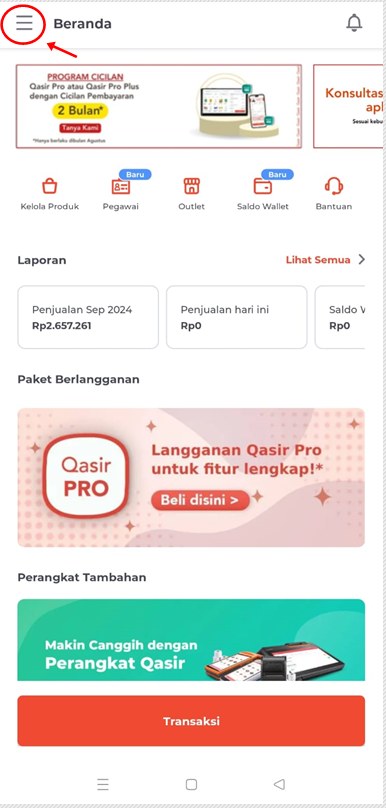
Start from the profile icon in the top left corner of the Qasir app.
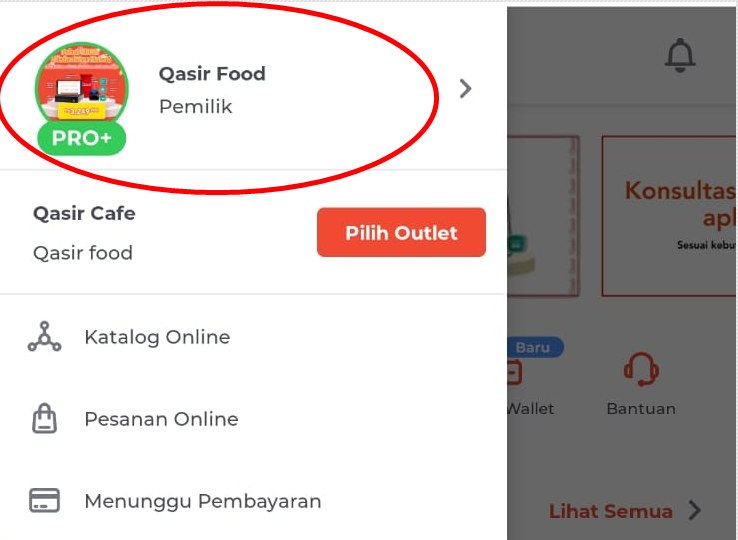
Pick the outlet you manage from the Qasir profile page.
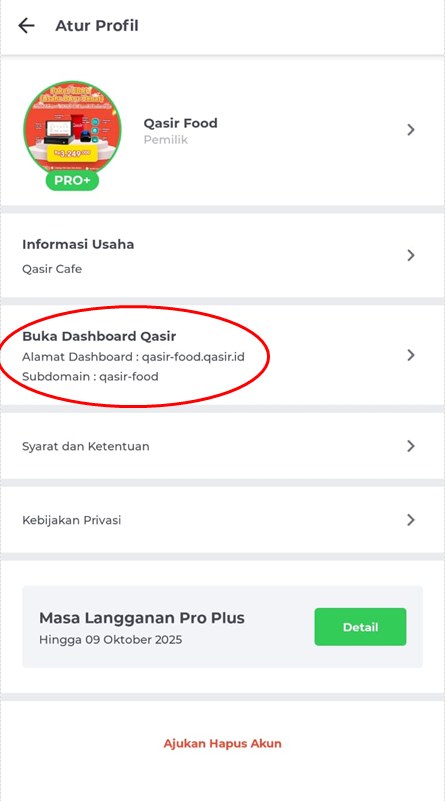
The Access Qasir Dashboard menu: one tap from the app, with no extra login.
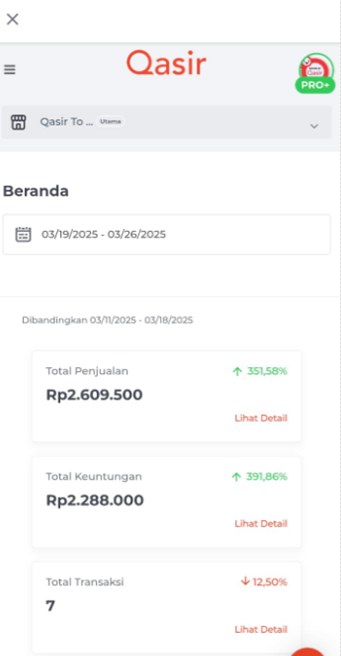
The dashboard opens right on your phone: total revenue and new customers are visible at a glance.
Conclusion
Accessing the dashboard from the Qasir app changes how business owners monitor their business. No more waiting in front of a computer; just open the app on your phone, tap the dashboard icon, and the entire sales summary opens without logging in again.
For small business owners like a coffee shop in Gayo, a motorcycle repair shop in Solo, or a grocery store in Surabaya, this convenience means decisions can be made faster and based on data. With the simple habit of reading the dashboard every day, even a small business can grow on a stronger foundation.
It is time to stop guessing about the condition of your business. Start getting used to reading the numbers from the Qasir dashboard directly on your phone.
Ask the Qasir Team If Something Is Still Unclear
- Qasir Dashboard for reading transaction reports and business information not available in the cashier app.
- Sales reports for viewing daily, weekly, and monthly trends at a glance.
- Digital cashier app for recording transactions directly from a phone or tablet.
- Cash recap in the Qasir app for monitoring money in and money out in one place.
- Product and price management for updating product lists and prices that sync immediately with the cashier.
If something about using this feature is still unclear, the Qasir Customer Happiness team is ready to help. Open the Help feature in the app or on the Qasir website and start a Live Chat. You can attach a screenshot or a video so the answer matches your case.
The full steps are in the guide to contacting the Qasir team. Ready to try it yourself? Download Qasir for free on the Play Store or the App Store.