

A Kaspersky survey published in early November 2026 found that 87% of Asia Pacific SMEs experienced at least one cyber incident in the last 12 months, with the figure for Indonesia reportedly reaching 92%. Yet one of the simplest entry points is not sophisticated malware at all, but weak passwords or PINs that owners themselves forget. If you are panicking because you forgot your Qasir password right when the checkout line is longest, relax: the Forgot PIN feature in the Qasir app is designed so you can fix it yourself in a matter of minutes, with no re-registration and no loss of business data.
Forgot Your Qasir Password? It Happens, and You Can Fix It Yourself
In the Qasir app, your login identity is the phone number or email you registered, paired with a six-digit PIN you created during sign-up. When the PIN is entered incorrectly again and again, or is truly forgotten, the answer is not to create a new account. The Forgot PIN feature sends a verification code to your registered phone number and then walks you through creating a new PIN right inside the app.
One thing every business owner should understand: resetting the PIN only changes the door key, it does not empty the house. All product data, transaction history, and reports stay stored because they are synced to the cloud. Once the new PIN is active, you can go straight back to serving customers.
There is one prerequisite that determines whether the whole process runs smoothly: the registered phone number or email must still be active and accessible. If you cannot remember which details you used to sign up, revisit the guide to registering and logging in to a Qasir account to confirm the number attached to your account.
How to Reset a Forgotten Qasir PIN in Five Steps
The flow is deliberately short so anyone can follow it, even first-timers. Here is the summary:
- Open the Qasir app on your phone until the login screen appears.
- Tap the Sign In icon, then choose Forgot PIN at the bottom right corner of the screen.
- Fill in the Forgot PIN form with the phone number or email you registered with, then tap Continue.
- Confirm the phone number and email where the verification code will be sent. If everything is correct, tap Continue again.
- Enter the verification code sent by SMS. If the code has not arrived within one minute, tap Resend SMS. Once verification succeeds, create a new six-digit PIN, confirm it, then tap Log In Again.
You can check the exact look of each screen in the official Forgot Password guide in the Qasir Help Center. The whole process usually takes under five minutes with a stable signal and an active number.
| Stage | What You Do | Result |
|---|---|---|
| Open the app | Go to the Qasir login screen | The Forgot PIN menu appears at the bottom right |
| Enter your identity | Type the registered phone number or email | The system finds your account |
| Verification | Enter the code from the SMS | Your identity is confirmed as the account owner |
| New PIN | Create and confirm a new six-digit PIN | You log in again and your business data reopens |
Fits Three Types of Business
- A coffee shop in Semarang — the owner forgets the PIN while opening in the morning, then resets it via SMS code in minutes without waiting for the employee who remembers the PIN.
- A grocery store in Makassar — the cashier phone is replaced after breaking down, and the owner resets the PIN alone from a personal phone without coming to the store.
- A beauty salon in Bandung — the owner changes the PIN regularly for security and can serve customers again as soon as the reset is done.
3 Important Tips: Keep the PIN Reset Process Smooth
Tip 1: Make Sure the Registered Number Is Still Active Before Resetting
The verification code is sent to the phone number registered on your account. If that number is no longer active or the SIM card is lost, the reset process will stall halfway. Update it in your profile whenever you change numbers so recovery always works.
Tip 2: Create a New PIN That Is Strong but Still Memorable
Avoid PINs that are easy to guess, such as birth dates or simple number sequences. Build a six-digit combination that is not connected to personal data others can easily find, yet still follows a pattern you can remember without writing it down in a public place.
Tip 3: Store the PIN Safely and Limit Who Knows It
Whenever possible, only the owner and trusted employees should know the cashier PIN. If an employee leaves, changing the PIN is a simple, worthwhile precaution. Remember too that regularly changing passwords remains one of the basic cyber security recommendations for SMEs.
FAQ
Will I lose my business data if I reset my PIN?
No. Resetting the PIN only changes your six-digit login code. All product data, transaction history, customer data, and reports remain safely stored in the cloud and become accessible again as soon as you log back in with the new PIN.
What should I do if the SMS verification code never arrives?
First, make sure your phone signal is stable and the registered number is still active. If the code has not arrived within one minute, use the Resend SMS button on the verification screen. If it still fails, contact the Qasir Customer Happiness team via Live Chat.
My registered phone number is no longer active, what should I do?
The reset process does require access to the registered number or email. If you can no longer access either, the fastest route is to contact the Customer Happiness team via Live Chat or Qasir's official email, with the owner's details ready for verification.
Is the Qasir PIN the same as the dashboard password?
Not necessarily. The six-digit PIN is used to log in on the cashier app, while the web dashboard may use its own email and password combination. If you also have trouble logging in to the dashboard, learn how through the guide to logging in to the Qasir dashboard.
How often should I change my PIN?
There is no fixed rule, but changing your PIN every few months, or whenever employees with cashier access change, is a good habit. Avoid reusing a PIN once shared widely.
Business and Finance Tips
Keep Personal and Business PINs Separate
Do not use the same PIN for the cashier app and your personal apps. If one account is compromised, the other stays protected. Also separate the cashier phone from your personal phone so access to financial apps never gets mixed up.
Schedule Regular PIN Changes
Build PIN changes into your monthly routine, alongside stock checks or closing the books. This closes the risk of long-term misuse by anyone who once knew the old PIN.
Review the Devices Connected to Your Account
An old phone that is sold or handed over without logging out first is a security gap. Before letting a device go, make sure you have signed out of the account and changed your PIN. Also check the replacement against the list of devices supported by the Qasir app.
Educate Employees About Scams
Many SME cyber incidents start with a fake message asking for a verification code. Remind every employee: a Qasir verification code is only used inside the app and never requested by anyone over a call or chat. When in doubt, ask the owner.
Qasir Features for Account Security and Smooth Operations
Live Chat in the Qasir App
A direct help feature available inside the app and on the Qasir website. If a code gets stuck or the reset stalls, you can ask the Customer Happiness team without leaving the app.
Automatic Data Synchronization
All transaction and product data is stored and synced to the cloud. The benefit is clear when you forget your Qasir password: after the PIN change, all business data returns intact without re-entering anything.
Connected Devices Feature
From the dashboard, you can see the list of devices currently logged in to your account and remove old devices that are no longer in use. This is an important step after changing phones or when an employee leaves.
Changing the User Profile from the Dashboard
The phone number and email in your account profile can be updated from the dashboard. Keep both active, since this is the main channel for verification codes when you reset your PIN later.
What the Qasir App Screens Look Like
The actual screens you will pass through:
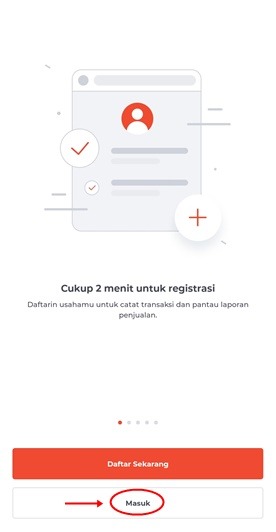
From this screen, tap Sign In and then choose Forgot PIN at the bottom right corner.
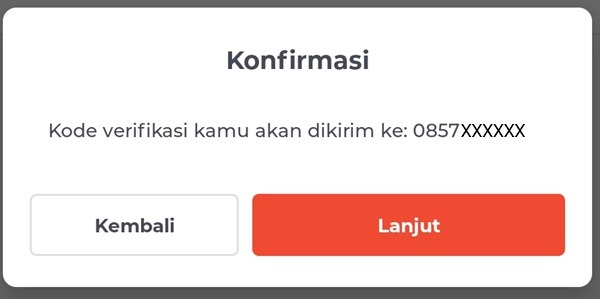
Confirm the phone number that will receive the verification code before continuing.
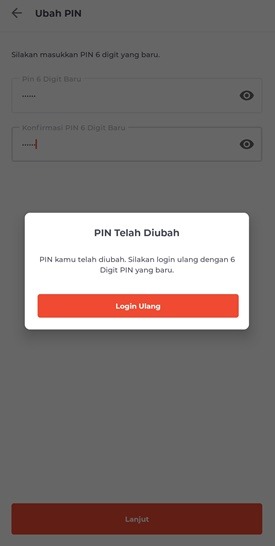
Once the verification code is valid, create a new six-digit PIN and log in again.
Conclusion
A forgotten Qasir password is not the end of the world when you know the reset route. Simply open the app, choose Forgot PIN, enter your registered number or email, verify with the SMS code, then create a new PIN. Your business data stays intact and you can be selling again within minutes. The only real key: keep the registered phone number and email active, and get used to changing your PIN regularly. For closer monitoring after logging back in, use the Qasir dashboard from the app to watch your business from anywhere.
Ask the Qasir Team If Something Is Still Unclear
These Qasir features go a long way in keeping your business operations smooth and secure:
- Forgot PIN feature for recovering access without re-registering.
- Data synchronization so every record stays safe in the cloud.
- Connected Devices feature to manage devices that are logged in.
- Live Chat to ask the Customer Happiness team directly.
- Sales reports to monitor business performance after logging back in.
If anything still feels unclear about how to use this feature, the Qasir Customer Happiness team is ready to help. Just open the Help feature in the app or on the Qasir website and start a Live Chat. Feel free to attach a screenshot or video so the answer is more precise. See also the guide to contacting the Qasir team via Live Chat.
Download Qasir for free on the Play Store, and keep your business account access safe and easy to recover at any time.