

Many small food stalls, motorcycle repair shops, and grocery stores in Indonesia still record sales in paper notebooks. When closing time comes, the owner counts profit from memory, often unaware that a product has sold out on the shelf without being written down. As a result, the next restocking decision is made by guesswork instead of data. The steps below cover exactly how to register a qasir account, what data you need, and how the first login works.
That is why creating a Qasir account should be your first step, not your second. This free digital cashier app turns manual records into usable data: products are entered, transactions are recorded, and daily reports are generated automatically. All it takes is one big step: making the account. This guide walks you through how to register a Qasir account, from installing the app to successfully landing on the home screen.
If your business is using a cashier app for the first time, do not put it off. Clean business data from day one makes daily reports, cash recaps, and decision-making far easier. The process itself is short, with most of the work done on the registration screen within a few minutes.
What Registering and Logging In to Qasir Means: Function and Benefits
Qasir is a point of sale application, a selling aid that works almost like a conventional cashier machine but with extra features: entering products, recording daily transactions, and producing simple reports every day. The app was built to empower Indonesian MSMEs across many types of businesses, from food stalls and coffee shops to repair shops and grocery stores.
Registering a Qasir account means creating your business profile inside the app. This is where you enter the business name, business type, the sub-district (kelurahan) of your main outlet, owner's name, phone number, PIN, and email. The 6-digit PIN and email become your login identity, while the business type and main outlet location shape the product data and reports that appear once the account is active.
After the account is created, the Qasir login process is how you get back into the app with the same data. With tidy data inside the app, you can monitor revenue, manage prices, and check stock without recalculating from paper notes.
| Stage | What You Prepare | Result |
|---|---|---|
| Register | Business name, business type, and an active email | Your Qasir account is created |
| Business details | Main outlet village, city, and province | Your outlet is mapped |
| Owner details | Full name, phone number, national ID, address | Your account is verified |
| Verification | The OTP code sent by email | Your account is active and ready |
| Log in | Your email and password or PIN | You enter the Qasir dashboard |
How to Register a Qasir Account and Log In in a Few Simple Steps
Both registration and login follow the exact flow described in the official Qasir help article on registering and logging in. Here is the summary so you can repeat it anytime.
- Download the app. Get Qasir from Google Play Store on your Android device, then open it until the login screen appears.
- Tap Register Now. On the login screen, press the Register Now button to start registering your store, then choose Indonesia as the country and tap Continue.
- Fill in your business data. Enter the business name, pick the closest business type, search for the sub-district (kelurahan) of your main outlet, then fill in the owner's name, phone number, 6-digit PIN, and email. The referral code is optional and can be left empty.
- Agree to the terms and register. Make sure you have read the terms and conditions and the privacy policy, then tap Register. If any field is still empty, the app shows a red notification asking you to complete it.
- Enter the verification code. The OTP code is sent by SMS to your phone number and by email. Once the code is entered, the app syncs your data and takes you straight to the Home screen.
Once the account is active, logging in is done from the login screen by entering your phone number or email together with the password you created during registration. For the phone number, simply start from the digit 8, because the country code 62 is already filled in. Employees with Operator access rights will land directly on the Transaction screen after a successful login.
If you own more than one outlet, sign out of the current account first before logging into another one, so the data shown truly belongs to that account.
Fits Three Types of Business
This feature is not limited to one type of business. Here are three examples so you can match it to your own store.
- Coffee Stall in Gayo, Aceh — Mr. Rahman runs a coffee stall in the Gayo farming area.
- Motorcycle Repair Shop in Solo — Mas Ari owns a small repair shop in Solo with two mechanics.
- Grocery Store in Surabaya — Bu Sinta runs a grocery store in Surabaya with around 300 product lines.
3 Important Tips: Small Things That Are Often Missed
After understanding the registration and login steps, there are three small things that are often overlooked but have a big impact on how smoothly the app runs. The three tips below are grouped into their own sections so they are easy to practice.
Tip 1: Prepare Your Business Data Before Opening the Registration Screen
The registration form is much faster to complete when all the data is already at hand: business name, business type, the sub-district (kelurahan) of the main outlet, owner's name, an active phone number ready to receive SMS, an email account you can still access, and a 6-digit PIN that is easy for the owner to remember but hard for others to guess. One phone number can only be used for one account, so make sure the number is dedicated to the business and not already used for another account.
Tip 2: Use an Active Email and Store Your PIN Safely
The OTP verification code is sent via SMS and email. If the email is no longer active or the inbox is full, verification can be delayed. Keep the PIN somewhere only the owner knows, not taped next to the cashier machine. For security, change the PIN regularly and avoid birth dates or number patterns that are easy to guess. Good financial recording habits after the account is active can be learned from our article on recording income and expenses.
Tip 3: Fill Optional Fields Wisely and Read the Terms
The referral code field is optional and can be left empty. Fill it in only if you are registering on the recommendation of a friend who has already joined MitraQasir. Before pressing the Register button, take a moment to read the terms and conditions and the privacy policy, so you understand how your business data is managed and how Qasir services can be used to their full potential.
FAQ
Is registering a Qasir account free?
Yes. You can download the Qasir app and create an account at no registration cost. The app can immediately be used to record transactions, manage products, and view daily reports. For the latest information about available services and plans, visit the official Qasir website.
What if the OTP code does not arrive by SMS?
Make sure the registered phone number is active and has sufficient signal. The OTP code is also sent by email, so check the inbox of the registered email address, including the spam label. If it still does not arrive, wait a few minutes and use the resend option, or contact the Qasir Customer Happiness team through the live chat in the app.
Can one phone number be used for multiple accounts?
No. One phone number can only be tied to one account. If you have more than one outlet or business, manage all of them under a single account using the outlet management feature, or use a different phone number for another account.
When should I log in to my Qasir account again?
Re-logging in is usually only needed after signing out, for example when switching accounts or using a new device. If there is an app update, or after the phone has been off for a long time, the app may ask you to log in again for the security of your business data.
Business and Finance Tips
Start Recording from Day One
Good recording habits begin the moment the account is active. Do not wait until next month or until a problem appears; every transaction recorded today adds data that can be read next week. A small business with daily records is far more ready when it has to evaluate profit, set new prices, or apply for funding.
Separate Personal Money from Business Money
One reason small businesses struggle to know whether they are profitable is mixed personal and business money. Use the cash-in and cash-out features in Qasir to record every amount entering or leaving the business, including personal capital deposits and owner withdrawals. That way the cash recap that appears truly reflects the condition of the business.
Review Regularly Using Data, Not Feelings
Sales reports are generated automatically and can be read every week or every month. Look for three things: best-selling products, busiest hours, and the average transaction per customer. From there you can decide which promotions are worth trying, when to restock, and which products need evaluation. Reading sales data for decisions like this is explained in our article on finding best-selling products from sales data.
Qasir Features for Building Your Account and Starting to Sell
Once your account is created and you have logged in successfully, the following features help you put your business data to work right away.
Digital Cashier App
The digital cashier app is Qasir's core feature for recording every sales transaction from your phone. Its benefit: stalls and stores no longer need paper notebooks, because every transaction is saved automatically and can be reviewed anytime.
Product and Price Management
The product and price management feature lets you enter product names, categories, and selling prices according to your business needs. Its benefit: every product is stored neatly from the start, so transactions run fast and prices are no longer memorized or misquoted.
Sales Reports
The sales report feature compiles daily, weekly, and monthly transaction summaries automatically. Its benefit: business owners can see best-selling products and sales comparisons between periods without manual counting from paper notes.
Cash In, Cash Out, and Cash Recap
The cash-in and cash-out features record all business money flows, from sales to operational spending, and present them in a cash recap. Its benefit: you know exactly how much money comes in and goes out, so decisions on stocking or paying store needs are better measured.
What the Qasir App Screens Look Like
The screenshots below come straight from the Qasir app, so you know exactly what you will see while using these features.
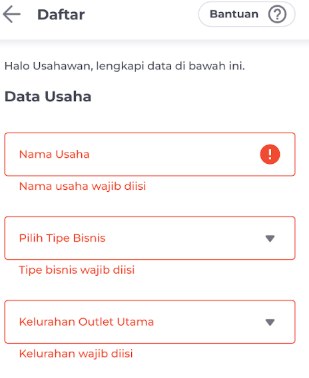
The first registration step: fill in your business details such as business name and business type.
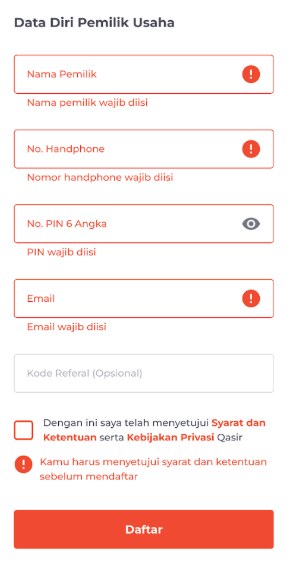
Owner personal data: your national ID, address, and email become the base of your Qasir account.
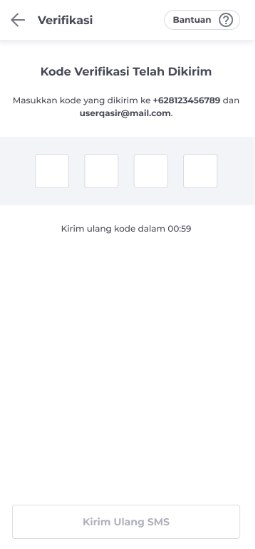
OTP verification: the code from your email confirms the account really belongs to you.
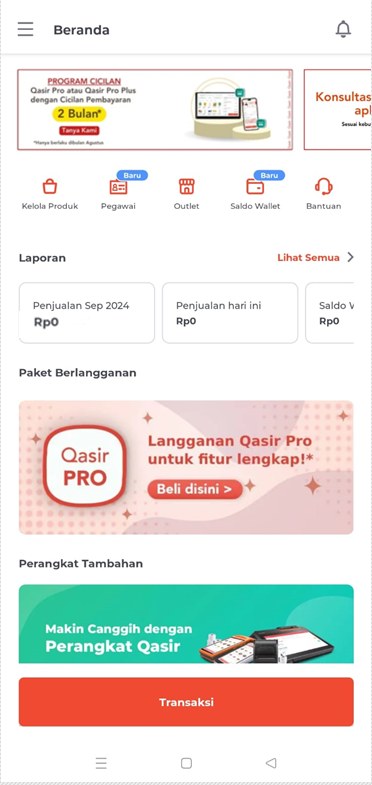
Signed in successfully: the Qasir dashboard opens and every cashier feature is ready to use.
Conclusion
Registering a Qasir account is the first step and the foundation for a business that wants to sell more systematically. The process is short: download the app, tap Register Now, fill in your business data, verify the OTP, then land on the home screen and start recording transactions. Logging back in only takes your phone number or email together with the password created during registration.
What makes this step valuable is not merely having an account, but business data that starts being stored neatly from day one. From there, sales reports, cash recaps, and restocking decisions can be made based on facts instead of guesswork. For the latest technical details, always refer to the official Qasir help article on registering and logging in.
Ask the Qasir Team If Something Is Still Unclear
- Digital cashier app records every transaction from your phone so daily sales are saved automatically without paper notebooks.
- Product and price management keeps the item list and prices neatly stored, so transactions run fast and prices are never misquoted.
- Stock and stock opname help monitor remaining items so stock-outs are no longer discovered only when customers ask.
- Cash in, cash out, and cash recap record every business money flow so your cash position is always clear.
- Sales reports present best-selling product data and sales comparisons as a basis for business decisions.
If something about using this feature is still unclear, the Qasir Customer Happiness team is ready to help. Open the Help feature in the app or on the Qasir website and start a Live Chat. You can attach a screenshot or a video so the answer matches your case.
The full steps are in the guide to contacting the Qasir team. Ready to try it yourself? Download Qasir for free on the Play Store or the App Store.