

Every morning, before the shop doors open, many business owners in Indonesia pick up their phones and open their cashier app. Not to recount yesterday's sales, but to answer one simple question: how much revenue came in yesterday, and which product sold the most.
Until recently, many owners had only one measuring tool: a paper notebook or a quick chat. As a result, decisions about restocking, changing product lines, or adjusting prices were made by guesswork instead of numbers.
Qasir answers this pain point with a single screen that opens on a computer: the Qasir Dashboard. There, daily revenue summaries, best-selling products, low-stock alerts, and sales reports can be read at a glance. This article explains how to log in to the Qasir Dashboard, what you can see there, and how to use it for sharper daily decisions.
What Is the Qasir Dashboard and the Problem It Solves
Qasir runs not only as a cashier app on a phone. Qasir also provides a web version called the Dashboard, where all business data recorded from cashier transactions is gathered. The account owner, as well as staff members who have been given Supervisor access, can open the dashboard through www.qasir.id. The full login procedure is described in the official guide to logging in to the Qasir Dashboard.
The problem this dashboard solves is simple but real: many business owners do not know which products actually make money and which ones are running out. Usually they only know the total revenue, and even that is often estimated because the paper notebook is never accurate. When sales data, stock, and cash inflows and outflows are arranged on one screen, decisions about restocking, changing prices, or preparing promotions no longer rely on guesswork.
Four groups of information are the ones owners look for most: the daily revenue summary, best-selling products, low stock, and full sales reports per period. Reading these four items every morning lets an owner understand the direction of the business without visiting the store first.
| Dashboard Menu | What It Shows | Why It Helps |
|---|---|---|
| Summary | Today's revenue and transactions | Check performance in the morning |
| Sales Reports | Best sellers and period comparison | Decide what to restock next |
| Product Management | Product names, prices, and categories | Update prices quickly |
| Stock and Stock-Taking | Remaining stock and count differences | Prevent running out of items |
How to Log In to the Qasir Dashboard: Simple Steps
The Qasir Dashboard is opened through a browser, so there is no need to install an extra app. The account owner and staff with Supervisor access can log in by following these steps.
- Open www.qasir.id in your browser, then click the Log In button.
- Enter the phone number or email address registered with your Qasir account, then fill in the PIN you use to sign in.
- Click Log In and wait for your store page to open. Once successful, your business data appears on the dashboard.
- Read the revenue summary, best-selling products, sales report, and the list of stock that needs to be purchased soon. This data becomes the basis of daily decisions.
- Update product data, prices, or staff information from the dashboard when needed, then check revenue again the next day.
If the Log In button does not work, first check that the phone number and PIN match what is registered. Many failed logins happen not because the data is wrong, but because an old account is still being used after the phone number was changed.
Fits Three Types of Business
This feature is not limited to one type of business. Here are three examples so you can match it to your own store.
- Coffee Shop in Gayo — A coffee shop in Gayo usually sells more than one variant, from ground coffee for home brewing to ready-to-drink beverages.
- Motorcycle Repair Shop in Solo — A motorcycle repair shop in Solo typically sells service packages that include oil, filters, and several small components.
- Grocery Store in Surabaya — A grocery store in Surabaya sells hundreds of items, from cooking oil to detergent.
3 Important Tips for Reading Business Data from the Dashboard
Because the dashboard holds many numbers, its use needs to be limited to stay useful. The following three habits usually make data reading faster and more accurate.
Tip 1: Check the Revenue Summary Every Morning, Not Just Once a Day
Many owners open the dashboard only after the store has closed. Yet daily revenue is the number that changes fastest and gives the quickest signal. Reading the revenue summary every morning for five to ten minutes is enough to see whether sales are running as usual or dropping sharply.
A Practical Morning Habit
Save the dashboard link in your phone browser, open it every morning before the shop gets busy, and write down one number: today's revenue compared with the same weekday last week.
Tip 2: Use the Low-Stock List to Decide What to Order
The low-stock list on the dashboard is the part most easily ignored, yet it is the most closely tied to money going out. Products with only one or two units left usually sell out within a few days, especially when those products are best sellers.
How to Decide When to Order
Set a simple rule: as soon as a product's stock touches the minimum threshold, put it straight onto the order list. That way transactions never stop because an item is out of stock, and capital is not tied up in slow-moving goods.
Tip 3: Compare Numbers Against Your Monthly Target
Today's revenue means little without a target for comparison. On the dashboard, the sales report can be displayed for any date range, so the owner can compare the current month's revenue against the target they set for themselves.
The simplest method is dividing the monthly target by the number of working days to get a daily target figure. If the day's revenue is still below target, immediately check the best-selling products to find the cause. This approach turns the dashboard from a record of the past into a decision-making tool, not just a report read at month-end.
FAQ
Can the Qasir Dashboard be opened on a phone?
Yes. The Qasir Dashboard opens in a browser, so a phone, tablet, or computer can all be used. Only the screen size differs, not the data. Many owners use a phone for a quick morning revenue check and a laptop for reading longer reports.
Who is allowed to log in to the Qasir Dashboard?
The account owner can log in with full access. Staff members can also log in once they have been given Supervisor access. This access split is useful for businesses with several outlets, because the owner can see every store without requesting reports from each branch.
What if I forget the PIN to log in?
Recover the PIN first, then try logging in again with the same phone number or email used when the account was registered. If the entered data is correct but login still fails, contact the Qasir team via Live Chat in the Help Center or by email at hello@qasir.id so the account can be checked.
Can reports on the Dashboard be downloaded?
Sales reports on the dashboard can be reviewed per period, from daily to monthly. This data can be used as material for cash recaps and simple financial records. To keep your records tidy, our article on how to start recording income and expenses is a useful companion guide.
What happens if I rarely check the dashboard?
The data is still recorded neatly in the cashier app, so nothing is lost. What is missed is the time to react when sales start declining or stock is nearly gone. For that reason, the habit of reading the revenue summary every morning is far cheaper than waiting until the end of the month to count everything.
Business and Finance Tips
Separate Daily Revenue from Operating Costs
The revenue summary on the dashboard shows what came in, but it does not automatically show what remains after expenses. A simple habit that helps is recording operating costs, such as goods purchases and delivery fees, before deciding whether the day's revenue can be reinvested. If needed, our article on how to calculate profit correctly can serve as a reference.
Move from Sales Reports to Cash Records
The dashboard shows sales data, but the business's cash flow needs a separate record that captures money coming in and money going out. With both in place, the owner can see two things at once: sales performance and cash condition. If you need an extra guide, read our article on managing cash in and cash out.
Evaluate Products Using Data, Not Feelings
A product the owner considers good is not always the one that sells the most. Sales data on the dashboard is the most objective material for judging a product's performance. If a product keeps declining, first ask whether the problem is price, placement, or promotion. Our article on how to find your best-selling product from sales data explains this evaluation pattern.
Qasir Features for Reading Business Data
Qasir Dashboard
The Qasir Dashboard displays a summary of business data from transactions recorded in the cashier app. Its benefit for business owners is that daily revenue, best-selling products, and low stock can be read on one screen without stitching together data from paper notebooks.
Sales Reports
Sales reports summarize transactions per period so selling patterns can be read over time. The benefit is that owners can spot upward or downward sales trends and adjust strategy before losses accumulate.
Product and Price Management
Product and price management lets owners arrange the product list, selling prices, and purchase prices from the dashboard. The benefit is that price adjustments responding to stock movement or cost changes can be made quickly without visiting the store.
Stock and Stock-Taking
The stock and stock-taking features help record how many items are available and compare that number with the system record. The benefit is that stock gaps caused by missing items or recording errors are discovered early, before they grow into bigger losses.
What the Qasir App Screens Look Like
The screenshots below come straight from the Qasir app, so you know exactly what you will see while using these features.
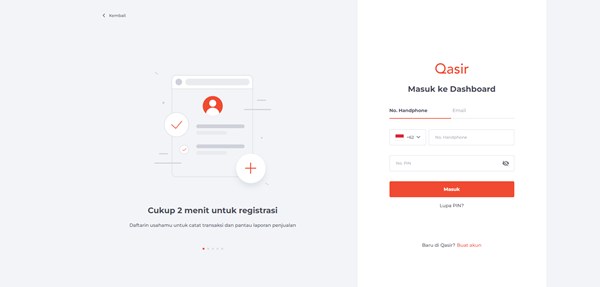
The Qasir sign-in page: just use the email and password you registered with.
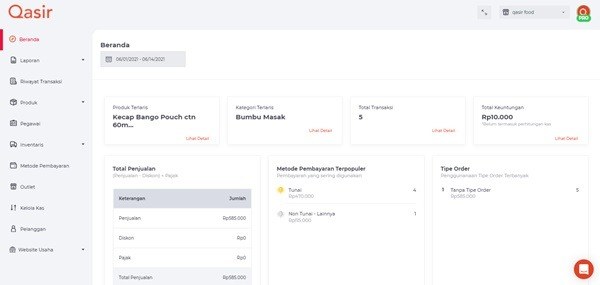
The Qasir dashboard after signing in: revenue summary, charts, and recent transactions on one screen.
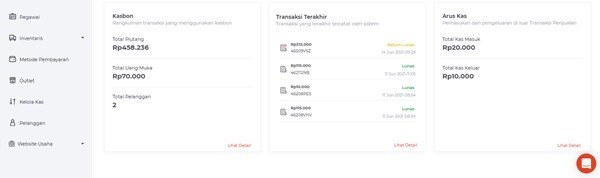
Business data details: sales tables and stock lists are ready to analyse whenever you need them.
Conclusion
Logging in to the Qasir Dashboard is a simple step that changes how a business owner sees their business. From one screen, the revenue summary, best-selling products, low stock, and sales reports can be read without stitching data together from multiple notebooks. Decisions about restocking, adjusting prices, or evaluating products no longer rely on guesswork.
What makes a dashboard truly useful is not how much data it shows, but the habit of reading it. Check the revenue summary every morning, mark the best-selling products, and compare numbers against the monthly target. These three small habits are enough to turn the dashboard from a passive report into an actively used decision-making tool.
For owners already using the Qasir cashier app, the dashboard is the easiest next step from data that is already recorded. Just open www.qasir.id, log in with the registered phone number or email and PIN, and start reading your business data today.
Ask the Qasir Team If Something Is Still Unclear
- Qasir Dashboard — read the revenue summary, best-selling products, and low stock on one screen.
- Sales Reports — see sales trends per period to judge the direction of the business.
- Product and Price Management — adjust prices and the product list without going to the store.
- Stock and Stock-Taking — make sure recorded stock matches what is on the shelves.
- Cash In and Cash Out — complete sales data with a daily record of cash flow.
If something about using this feature is still unclear, the Qasir Customer Happiness team is ready to help. Open the Help feature in the app or on the Qasir website and start a Live Chat. You can attach a screenshot or a video so the answer matches your case.
The full steps are in the guide to contacting the Qasir team. Ready to try it yourself? Download Qasir for free on the Play Store or the App Store.