
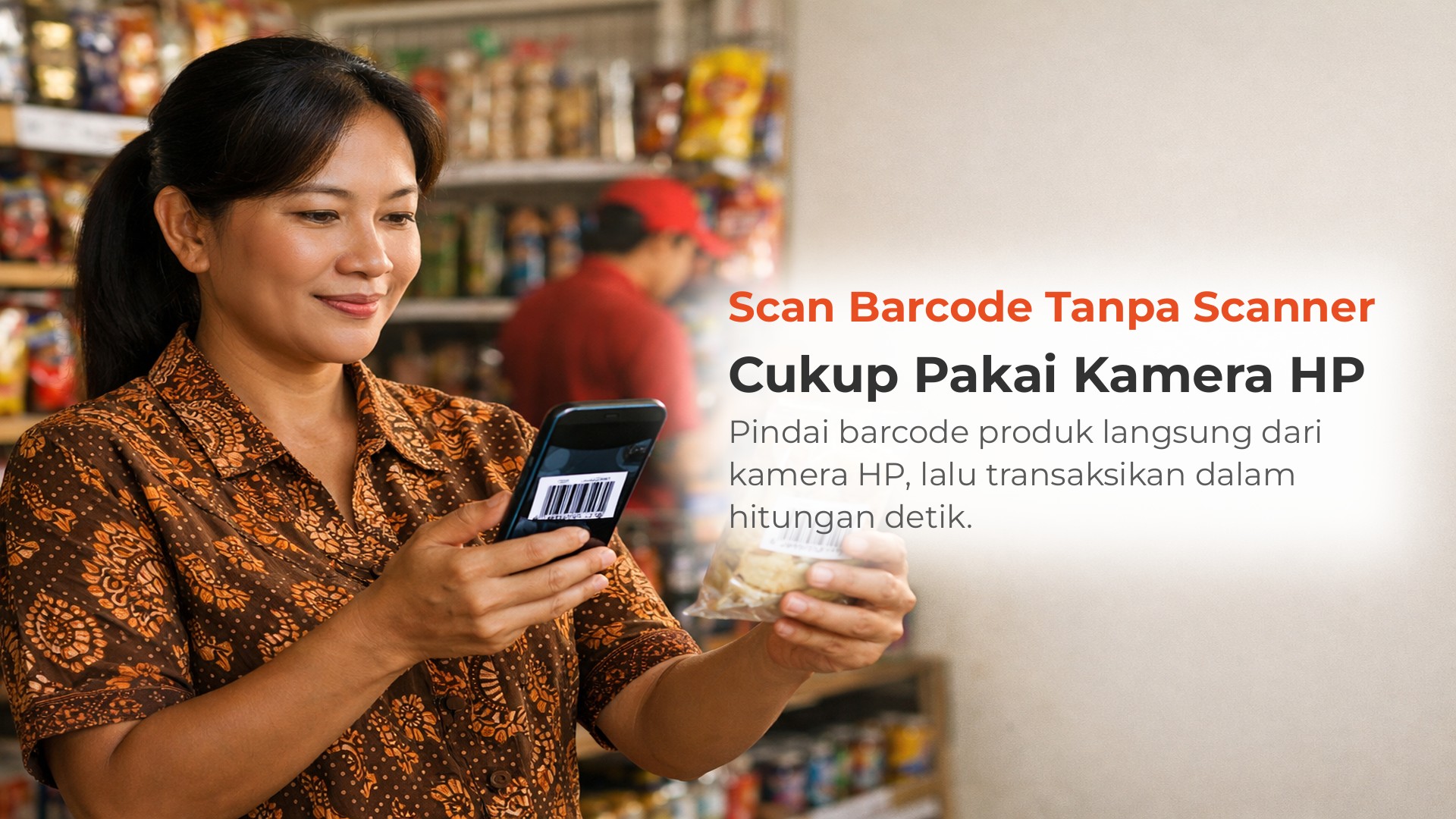
Barcode Scan in Qasir: Your Phone as Scanner
Indonesia's retail landscape is shifting fast. In November 2026, the Ministry of Trade facilitated 104 GS1 barcodes for 39 UMKM in Bandung (source), while Hippindo reported 4,100 barcode SKUs from small industries now sitting on modern retail shelves. The Ministry of Industry's Business Matching event (17–19 November 2026) connected 932 UMKM with larger buyers. The message is clear: a barcode is no longer optional — it is the entry ticket to minimarkets, supermarkets, and modern retail channels.
For small merchants, the challenge has always been how to manage barcodes without buying extra hardware. Dedicated barcode scanners cost money, need maintenance, and add another device to an already crowded counter. Qasir solves this by turning the phone you already carry into a capable barcode scan tool. The camera on your Android handset reads EAN-13 and UPC codes directly inside the Qasir app — no separate scanner, no Bluetooth pairing, no extra cost.
This article walks you through what the feature does, how to set it up, which business types benefit most, three practical tips for reliable scanning, answers to common questions, and a rundown of the Qasir features that make barcode workflows complete. For the official help article, see Qasir Help Center: Scan Barcode with Phone Camera.
"Sejauh ini puas menggunakan Qasir. Aplikasinya praktis, tampilannya mudah dipahami, dan sangat membantu dalam mencatat penjualan serta memantau transaksi. Semoga ke depannya semakin banyak fitur menarik." — Irul
What Is Barcode Scan in Qasir?
Barcode scan in Qasir lets you use your phone's rear camera as a product-code reader. Open the app, point at a barcode, and the code lands in the product field instantly. The feature supports 1D barcodes (EAN-13 and UPC) — the global standard on packaged goods. QR codes are not supported yet; they are on the product roadmap for future releases.
Only the phone camera is supported at this stage. Tablets are excluded because the ergonomics of holding a tablet at a checkout counter do not work for fast-paced scanning. External barcode scanners have their own separate device settings in Qasir and are not part of this camera-based flow.
When a product runs out of stock, scanning its barcode still adds it to the cart — a "out of stock" notification appears but the cashier decides whether to proceed. This matches real-world counter behavior where a seller might still accept an order for back-order fulfillment.
How to Scan Barcode with Phone Camera
The setup takes less than a minute. Follow these steps once per product, then scan at the counter every day.
Summary of Barcode Scan Flow
Summary of Barcode Scan Flow
| Step | Action | Detail |
|---|---|---|
| 1 | Open Manage Products | Launch app → menu Manage Products → Products → tap "+" button |
| 2 | Enable Barcode Field | Toggle "Set Cost Price and Barcode" → scan or type the code |
| 3 | Save Product | Press Save → barcode stored automatically |
| 4 | Transaction & Scan | At checkout, tap scan icon → point camera at product barcode |
| 5 | Set Quantity | Enter qty (max 5 characters including comma) → product added to cart |
| 6 | Pay | Swipe up "Select" to review summary → Pay |
Step-by-step detail:
- Create the product record. In Qasir, go to Manage Products → Products and tap the "+" button. Fill in the product name, category, selling price, and other details. Learn more in Manage Products in Qasir.
- Activate the barcode field. Turn on "Set Cost Price and Barcode". A Barcode / Product Code input appears. Tap the scan icon next to it — the camera opens. Point at the barcode; the code fills in automatically. You can also type it manually if the label is damaged.
- Save. The barcode is now linked to that product forever.
- At the counter. Start a new transaction. Tap the scan icon on the transaction screen. The camera activates. Aim at the product barcode. The product name appears and the item joins the cart. The camera stays open — scan the next item immediately.
- Quantity input. After each scan, a popup asks for quantity. Maximum input is 5 characters (including a comma for decimals like
1.5). Confirm and the line item updates. - Complete the sale. When the cart is ready, swipe up the Select panel to review the order, then tap Pay.
Fits Three Business Types
The barcode scan feature solves different pain points depending on what you sell. Here are three Indonesian merchant profiles where it makes an immediate difference.
- Convenience store in Surabaya — GS1 barcodes from suppliers flow straight into Qasir without manual typing, cutting stock-input time for dozens of SKUs. See Digital Grocery: 5 Ways to Run a Warung Better.
- Coffee shop in Yogyakarta — scan barcodes on milk cartons, creamer packs, and coffee powder bags for accurate variant tracking without hassle.
- Motorcycle workshop in Solo — scan spare-part barcodes during service; transactions finish faster and spare-part stock deducts automatically. See POS App for Auto Repair Shops.
3 Tips for Effective Barcode Scan
Clean your phone lens before opening the register. A dirty camera causes failed scans and makes the checkout queue grow longer.
Use standard GS1 barcodes from suppliers. Avoid self-printed barcodes with poor print quality — they are blurry and hard to read.
Train cashiers to use continuous scan mode (Select — swipe up). One camera session handles many items without repeatedly opening and closing the camera.
FAQ: Barcode Scan Qasir
Can I scan QR codes? Not yet — currently only 1D barcodes (EAN-13/UPC) are supported. QR code support is being considered for future development.
Can I use a tablet? The camera scan feature is designed for phones; tablets are not supported due to checkout ergonomics.
How many characters can a product code have? Quantity input accepts a maximum of 5 characters including comma. The product code itself follows standard barcode length (EAN-13 is 13 digits).
Can I use an external barcode scanner? At present, the camera feature and external scanners are separate; external scanners have their own device settings flow. See Additional Devices in Qasir.
Do out-of-stock products still appear when scanned? Yes, an "out of stock" notification shows but the product remains selectable — the cashier decides whether to proceed. Learn about Stock Adjustment for SME Products.
Business & Finance Tips
1. Barcodes unlock modern retail channels. Minimarkets and supermarkets require GS1 barcodes on every SKU. Without them, your products cannot enter these high-volume channels. The November 2026 Ministry of Trade program facilitating 104 barcodes for Bandung UMKM proves the government sees this as a competitiveness lever — Kemendag press release. Treat barcode registration as a growth investment, not a compliance cost.
2. Accurate variants = accurate margins. When a coffee shop scans milk, creamer, and powder as separate variants, each sale attributes to the correct cost price. Manual entry errors blur margins — you think you're profitable on a drink that actually loses money because the wrong variant was recorded. Barcode scan eliminates that drift.
3. Stock deduction at point of sale prevents shrinkage. Every scan reduces inventory in real time. At month-end, physical stock opname matches system records far closer than with manual tallying. The gap between "what we should have" and "what we actually have" is where shrinkage hides. Closing that gap is pure profit recovery. See Stock Opname for Small Shops.
4. Data from scans feeds smarter purchasing. Qasir's sales reports show which barcoded products move fastest. Use that data to negotiate better terms with suppliers, bundle slow movers, and reorder before stockouts. The barcode is not just a speed tool — it is a data pipeline. See Which Products Sell Best? Check Sales Data.
Further Reading: Digital Grocery: 5 Ways to Run a Warung Better · Store POS Apps 2026: 8 Compared Options · Retail POS: 7 Features for Modern Stores · POS App for Auto Repair Shops.
Qasir Features for Barcode Scan
Manage Products
Set up complete product data including barcode — products are ready for transaction without retyping the code every time.
Additional Devices
Integrate thermal printers, external barcode scanners, cash drawers, and soundboxes — complete checkout operations without buying separate systems.
Stock Adjustment
Stock opname and automatic stock adjustment — discrepancies between physical and system stock are recorded and accumulated fastest.
Sales Reports
Best-selling product and revenue reports by period — see which products get scanned and sold the most.
What the Qasir App Screens Look Like
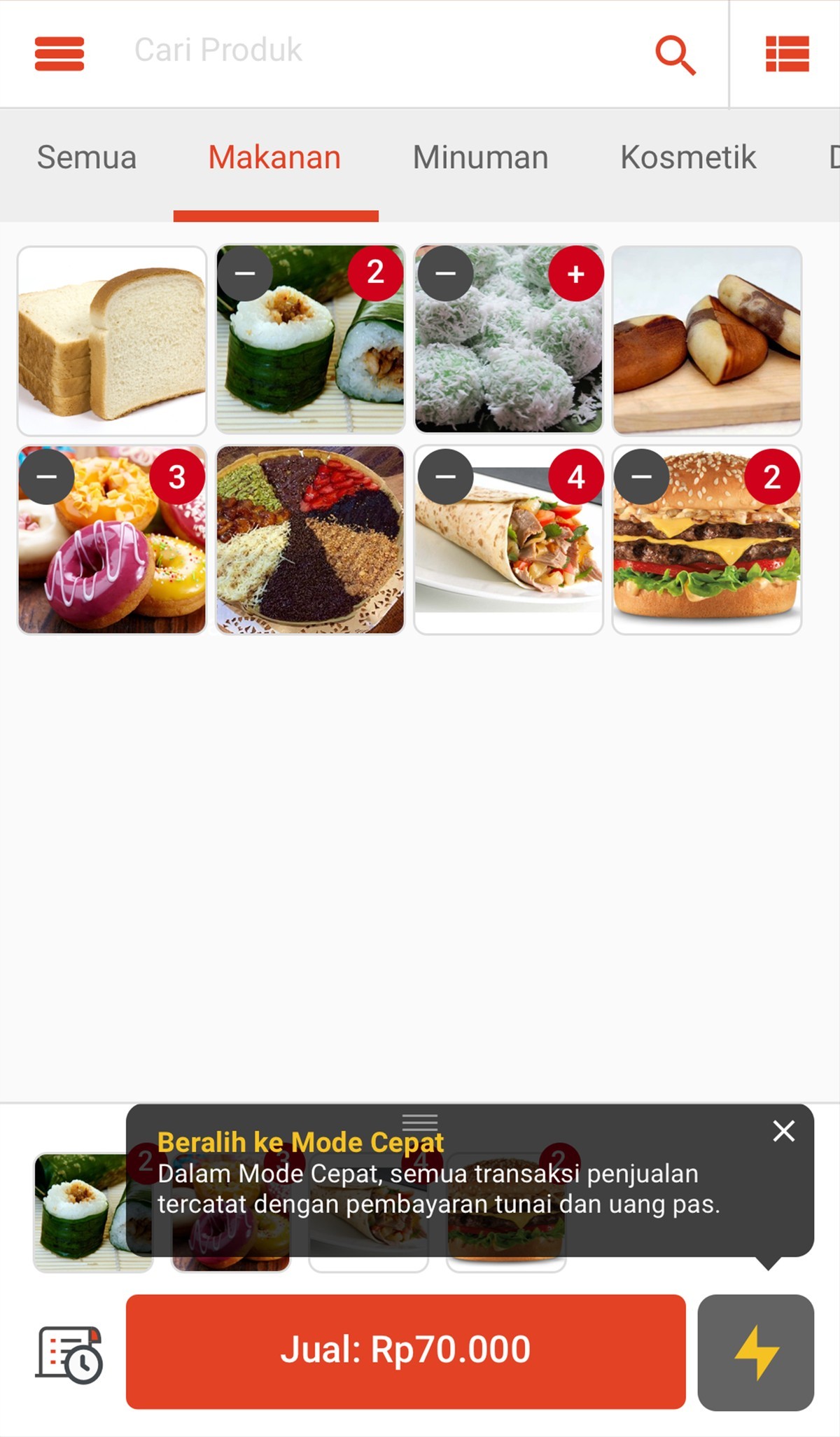
Transaction screen showing product catalog with the scan icon ready to tap.
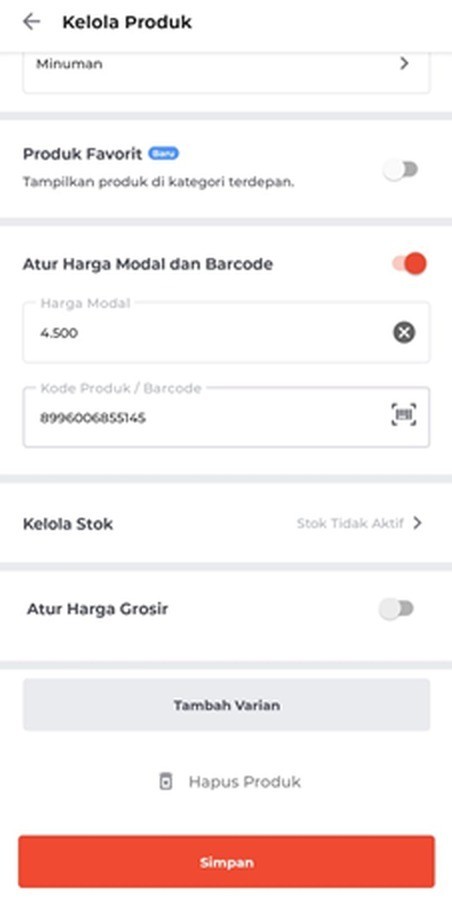
Product form displaying the Barcode / Product Code input field with scan button.
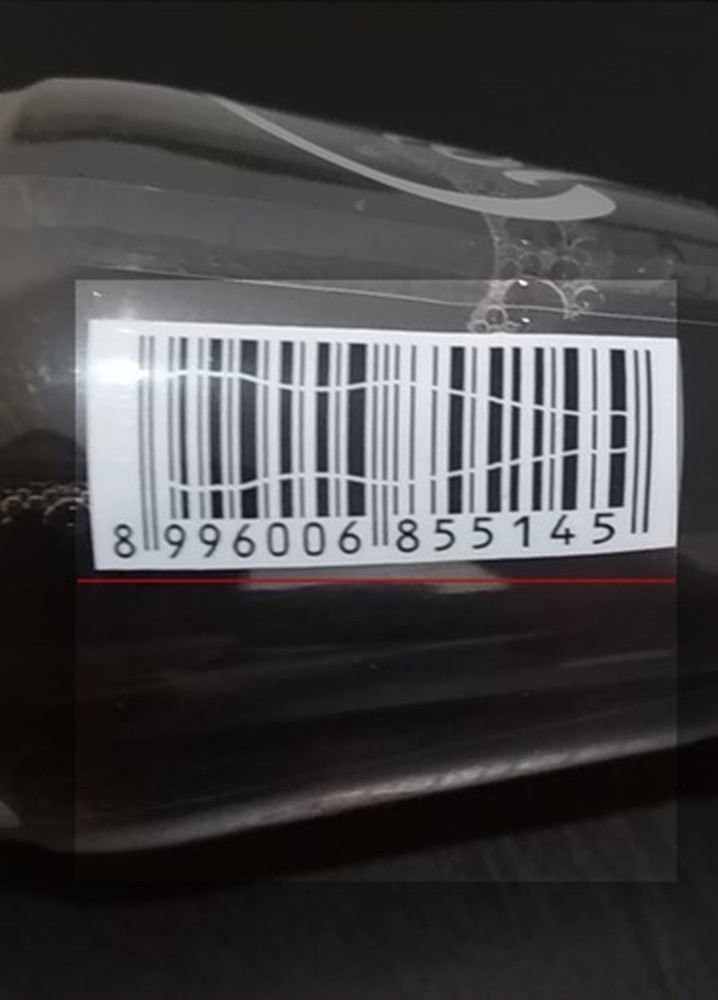
Camera view with red guide line for aligning the barcode during scan.
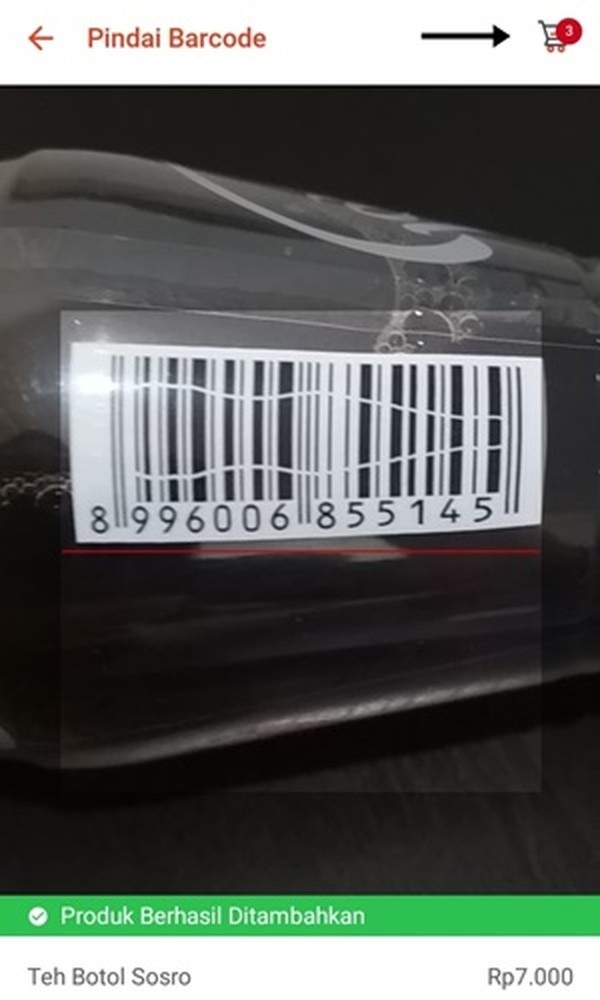
Scan result confirmation: "Product Successfully Added" to the cart.
Conclusion
The barcode scan feature in Qasir turns a routine smartphone into a retail-grade scanner. No extra hardware, no pairing headaches, no added cost. You create the product once, link the barcode, and from then on every sale is a single camera tap. Stock deducts automatically, variants stay accurate, and the data feeds directly into sales reports that guide purchasing decisions.
For the Surabaya convenience store, the Yogyakarta coffee shop, and the Solo workshop, the difference is measurable: faster queues, cleaner stock records, and a clear path into modern retail shelves that demand GS1 barcodes. The Ministry of Trade's November 2026 push for 104 new UMKM barcodes in Bandung is a signal — the market expects barcodes. Qasir makes sure you can meet that expectation with the phone already in your pocket. Compare options in Store POS Apps 2026: 8 Compared Options and Retail POS: 7 Features for Modern Stores.
Ask the Qasir Team If Anything Is Still Unclear
Manage Products — set up complete product data including barcode so products are transaction-ready without retyping codes.
Additional Devices — connect thermal printers, external scanners, cash drawers, and soundboxes for a full checkout station.
Stock Adjustment — run stock opname and auto-adjustments; physical-vs-system gaps are captured instantly.
Sales Reports — track best-sellers and revenue by period to see which barcoded products move the most.
If anything about this feature still feels unclear, the Qasir Customer Happiness team is ready to help. Open the Help feature in the app or on the Qasir website and start a guide to contacting the Qasir team. Attach a screenshot or short video — it helps the team give a precise answer faster.
Download Qasir free on the Play Store and turn your phone into a barcode scanner today.