
In early November 2026, Indonesia's Ministry of Communication and Digital Affairs (Komdigi) investigated an alleged leak of 5.7 million Fore Kopi customer records. Around the same time, AFTECH recorded 531 thousand cyberattack attempts against the fintech sector. For business owners, both stories are a reminder that accurate, well-protected account data is not a technical detail; it is part of customer trust. The most basic step you can take today is making sure the user profile on your POS dashboard is always correct and that your PIN is changed regularly.
If you use Qasir, the good news is that the process is simple. Changing your Qasir profile takes just a few minutes from the dashboard, with no technical help needed. In this article, we walk through how to change the user profile on the Qasir dashboard step by step: updating your name, email, phone number, profile photo, and PIN. We also include tips to keep your account secure so your business data stays protected. All steps can be done from a computer or a phone, as long as your device is connected to the internet. Read on for the full guide.
What Is the User Profile on the Qasir Dashboard?
The user profile is the identity page of the Qasir account owner inside the dashboard. This is where you manage the personal data linked to your account: First Name, Last Name, Email, Phone Number, Profile Photo, and PIN or Password. Two fields are required, First Name and Phone Number, while the rest are optional but strongly recommended. A tidy profile also makes identity verification easier whenever you contact Qasir support.
The Profile menu also acts as the notification center. Everything Qasir sends you, from subscription updates and data-change confirmations to PIN reset links, goes to the email address listed on the Profile page. If that email is no longer active, important notices can easily be missed.
Before following the steps below, make sure you already have a Qasir account and can access the dashboard. If not, start with our guides on registering a Qasir account and logging in to the Qasir dashboard. All steps below follow the official Qasir guide on changing the user profile from the dashboard.
How to Change Your Qasir Profile on the Dashboard
Changing the user profile on the Qasir dashboard takes just five quick steps:
- Open the Qasir dashboard on your device and sign in with your owner account. If you are unsure how, read our Qasir dashboard login guide first.
- Once you are in, click the profile photo icon in the top-right corner of the screen.
- In the menu that appears, choose "Profile". You will also see other options here, such as User Profile, Business Information, Subscription, and Log Out.
- Update the section you want to change: Personal Data for your name, email, and phone number; Photo for your profile picture; or PIN to change your Qasir PIN. Remember that First Name and Phone Number are required fields.
- Click "Save" to store the changes to your account.
Here is a summary of the user profile sections you can change from the Qasir dashboard:
| Profile Section | What You Can Change | Notes |
|---|---|---|
| Personal Data | First name, last name, email, phone number | First name and phone number are required |
| Profile Photo | Account profile picture | Optional, can be changed anytime |
| PIN | Old PIN, new PIN, confirm new PIN | The new PIN applies when signing in to the Qasir app |
Done. Your updated data is saved immediately, and future notifications will follow your latest email and phone number. If you changed your PIN, use the new one whenever you sign in to the Qasir app on your cashier device.
Fits Three Types of Business
This profile feature sounds simple, but it matters in the daily operations of a small business. Here are three illustrations:
- Coffee stall in Gayo — the owner changes her phone number after getting a new handset, and updates the profile right away so Qasir notifications no longer go to the inactive old number.
- Grocery store in Solo — the old email can no longer be accessed, so it is replaced through the Profile menu to keep subscription info and financial notifications readable.
- Beauty salon in Denpasar — the PIN is changed regularly whenever staff rotate, to keep transaction data on the cashier secure.
These three scenarios are illustrations, not promises of results. What is certain is that an accurate profile keeps communication between Qasir and the business owner running smoothly. The faster you update your data after every change, the smaller the risk of missing important information.
3 Tips for Managing Your Business Account Profile
Updating your profile once is not enough. Keep your business account healthy and secure with these three habits. None of them takes much time, but the impact lasts in the long run.
1. Make Sure Your Email Is Active and Checked Regularly
The email in the Profile menu is Qasir's main channel to reach you: transaction notifications, billing info, and PIN reset links all go there. Use an address you actually open every day, and read messages from Qasir regularly so nothing important slips through.
2. Change Your PIN Regularly
Your PIN is the first lock on the cashier app on your device. Change it periodically, especially after an employee leaves or a cashier phone changes hands. If you forget your PIN, you can recover it through the steps in how to reset your Qasir PIN.
3. Separate Owner and Employee Accounts
Avoid using one account for all staff. Create separate employee accounts so access rights can be controlled, and make a habit of logging out on shared devices. See the full guide on how to log out of your Qasir account safely.
FAQ
Here are answers to the most common questions about the user profile on the Qasir dashboard.
What data can I change in the user profile on the Qasir dashboard?
You can change your First Name (required), Last Name, Email, Phone Number (required), Profile Photo, and PIN or Password. Everything is managed from a single menu, Profile, which you open from the photo icon in the top-right corner of the dashboard.
Can I change the email address on my Qasir account?
Yes. Open the Profile menu, update the email field with your new address, and save. All Qasir notifications, including subscription info and PIN reset links, will then be sent to the new email automatically.
How do I change my Qasir app PIN from the dashboard?
Open the Profile menu from the photo icon in the top-right corner, select the PIN settings section, enter a new PIN, then click Save. After that, use the new PIN every time you open the Qasir app on your cashier device.
What is the difference between the user profile and business information on the Qasir dashboard?
The user profile holds the account owner's identity: name, email, phone number, photo, and PIN. Business Information holds your business or outlet data, such as the business name, address, and branch settings. Both live in the same menu, but they manage different things.
Business and Finance Tips
Beyond the dashboard, there are a few general principles worth holding on to about account data and credentials:
- Keep your business contact data accurate on every platform — your business email and phone number on the POS app, marketplaces, and social media should be consistent and active so customers and partners can reach you easily.
- Treat your business email as an asset — avoid a personal address you might abandon; customer data and transaction archives are tied to it, as explained in our article on why customer data matters for small businesses.
- Schedule regular account access audits — for example every three months, review who has access to the dashboard and cashier app, and remove access that is no longer needed.
- Document credential changes in a safe place — whenever you change a PIN or email, record the date and reason somewhere only the owner can access.
These habits make managing the Qasir dashboard far more effective, while reducing the risk of losing access or sending important information to the wrong place. Simple habits like these may feel small, but they are the front line of small business data security.
Qasir Features for Managing Accounts & Business Profiles
Besides the Profile menu, Qasir offers several connected features for managing your account and business profile:
Manage Outlets
This feature lets you set up branch or outlet data from a single account. The benefit is a consistent profile for each outlet that is easy to update as your business grows.
Manage Employees
Here you can create and manage employee accounts separately from the owner account. Access rights stay under control because each staff member only sees the features their role allows.
Live Chat Feature
An in-app help channel for talking directly to the Customer Happiness team. If an email or PIN change runs into trouble, you can ask right away through this channel.
Qasir Subscription
This menu shows your subscription period and the details of the plan you use. You can check everything in the same place as the Profile menu, without moving between pages.
What the Qasir App Screens Look Like
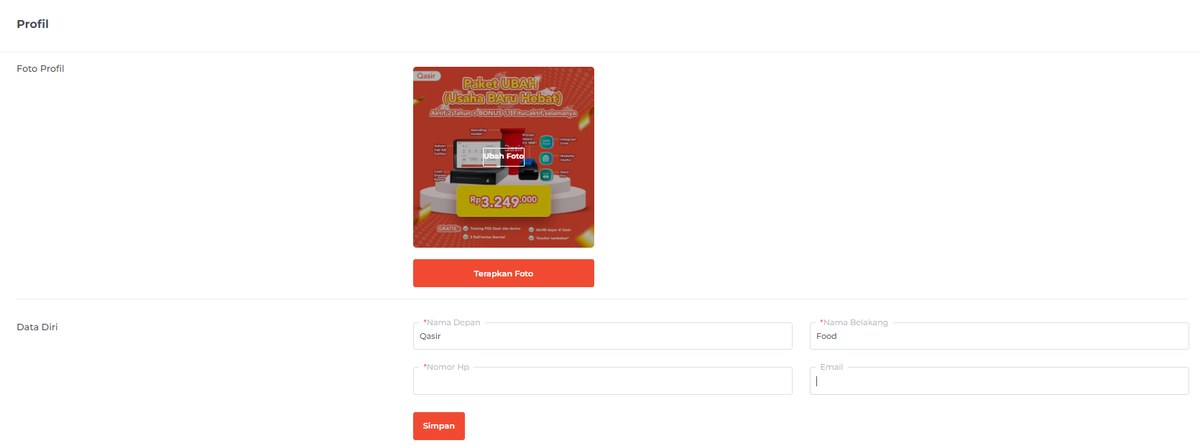
The Profile page on the Qasir dashboard: the Personal Data column for first name, last name, phone number, and email.
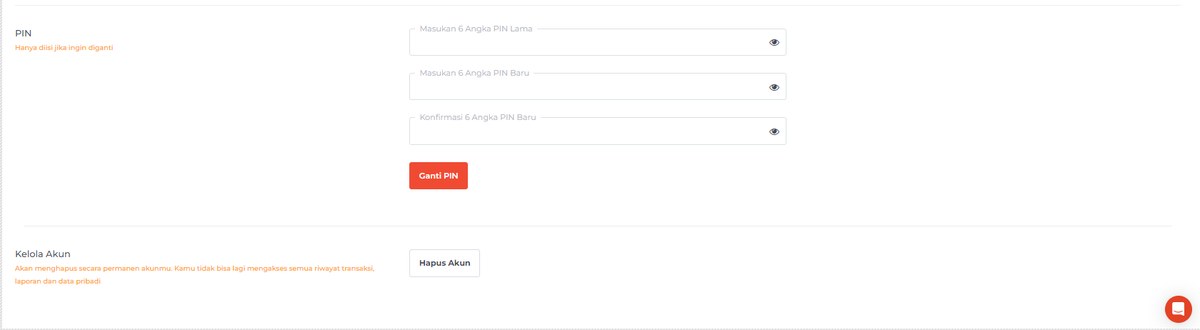
The PIN settings section: enter your old PIN, new PIN, and confirmation, then click Change PIN.
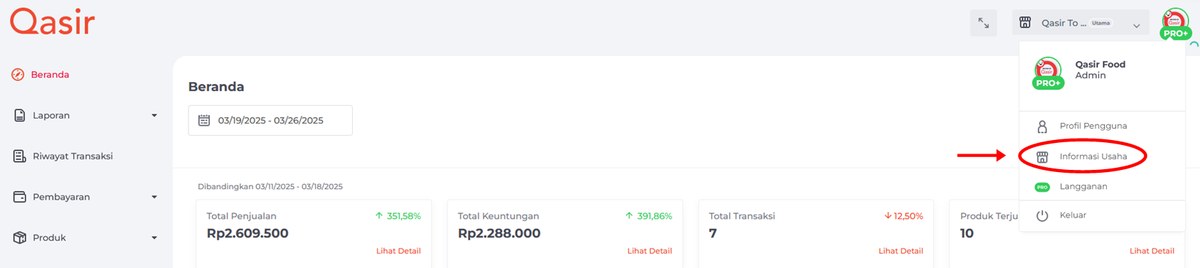
The menu at the top right of the dashboard: choose User Profile to edit your identity, or Business Information for business data.
Conclusion
Changing the user profile on the Qasir dashboard is a small step with a big impact on your business's security and day-to-day operations. In five quick steps you can update your name, email, phone number, profile photo, and PIN, so important notifications reach the right place and account access stays protected. Make profile updates and PIN changes a regular habit, not a one-time task. With an accurate profile, an active email, and a regularly changed PIN, you have taken the basic step of keeping your business account secure.
Ask the Qasir Team If Something Is Still Unclear
Besides the Profile menu, several Qasir features are closely tied to managing your business account:
- Manage Outlets to set up branch data and each outlet's profile.
- Manage Employees to create staff accounts with controlled access rights.
- Live Chat Feature to ask the Qasir Customer Happiness team directly.
- Qasir Subscription to monitor your active period and plan details.
If anything is still unclear about how to use this feature, the Qasir Customer Happiness team is ready to help. Just open the Help feature in the Qasir app or website, then start a Live Chat. Feel free to attach a screenshot or video so the answer is more precise.
For detailed steps on opening the help channel, follow the guide to contacting the Qasir team on the official help page. Download Qasir for free on the Play Store or App Store.