
How to Log Out of Your Qasir Account Safely
Digital security does not have to start with complicated tools. A recent report from Antara News in Yogyakarta reminded micro, small, and medium enterprises (MSMEs) that the basics matter most. Citing the executive director of CISSReC, the report advised business owners to use multi-factor authentication, create strong and different passwords for each service, limit account access to what is truly needed, and revoke access immediately for employees who no longer work at the business. None of this requires a big budget. In fact, the simplest habit is often the most overlooked one: knowing how to log out of your Qasir account, and actually doing it at the right moments.
Log out is a small action, but for shops that share one cashier phone or often change staff, it becomes part of everyday cyber hygiene. This guide explains how to use the log out feature in the Qasir app, when you need it, and how it protects your sales records, customer data, and cash reports.
Log Out of Your Qasir Account Is Simple, but Often Forgotten
The log out feature is there for whenever you want to leave the Qasir app and make sure no one else can open your account on that device. Once you log out, the app returns to the login page, and whoever picks up the phone will need your phone number and PIN to get back in.
It sounds trivial, but the problems it solves are real: shared devices passed between shifts, staff resignations where access should end on the last day, and phones that are lost or lent out while still logged in. In any of these cases, an open session means sales data, customer records, and reports are only one tap away.
Logging out will not delete anything; your data stays safely stored and reappears the moment you log back in. If you have not created an account yet, start with the guide on how to register and log in to a Qasir account first, then come back to this article.
How to Log Out of the Qasir App in Four Steps
The official flow is short and exactly the same on any Android phone. Here is how it works:
- On the home page, tap the profile icon in the top left corner.
- Select the Settings menu.
- Scroll to the very bottom of the page and tap the word Keluar (Log Out).
- Your account is now logged out, and the app returns to the initial Qasir login page.
If you prefer a visual reference, the official help article on logging out of your Qasir account at bantuan.qasir.id documents the same steps and is worth bookmarking for your team.
When is logging out actually necessary? Not every five minutes, of course, but there are clear situations where it is the right move. This table sums it up:
| When to Log Out | Why |
|---|---|
| At the end of a shift on a shared cashier phone | The next user starts from a clean login page, and only the owner can reopen the data. |
| Before switching to another branch account | Stock and reports from two outlets stay separate and do not get mixed up. |
| When the phone is lost, lent out, or left unattended | A logged-out app keeps sales data and customer records out of a stranger's reach. |
| When an employee resigns | Their access to the business account ends on their last day. |
| Before updating the app | The login session restarts cleanly, which helps avoid sync glitches. |
Logging out is a preventive habit, the digital equivalent of handing over the cash drawer key instead of leaving it in the lock.
Fits Three Types of Business
This feature is especially useful for small businesses where the cashier phone is a shared tool rather than a personal gadget:
- Coffee shop with two staff shifts: the cashier phone rotates between shifts, so the last employee of the day logs out to make sure sales and cash data can only be reopened by the owner during the daily recap.
- Grocery store with two branches: the owner logs out of one branch account before entering another, so stock levels and reports from the two outlets never get mixed up.
- Beauty salon: when a staff member resigns, the owner makes sure the account is logged out of the salon's phone so access to customer data and transaction history is cut off right away.
3 Important Tips: Use the Log Out Feature Wisely
Knowing the steps is one thing; making them a habit is what protects your business.
Tip 1: Log Out at the End of Your Shift If the Cashier Phone Is Shared
Make logging out the closing task of every shift, just like counting the cash drawer. Before the next person takes over, the previous user opens the profile icon, goes to Settings, scrolls down, and taps Keluar. The next employee logs in with their own access; overnight, your data is no longer one tap away from anyone.
Tip 2: Log Out Before Switching Accounts or Devices
Owners who manage more than one outlet often switch between branch accounts on the same phone. Always log out of the current account before logging into another one, so each outlet's stock, sales, and reports stay separate. The same rule applies when you move from the cashier phone to your personal device to check reports through the Qasir dashboard login to view business data: finish your session on the shared phone first.
Tip 3: Make Sure Access for Resigned Staff Is Cut Off
When an employee leaves, access should leave with them. Customer records and transaction history are business assets, as explained in this article on why customer data matters for MSMEs. On their last day, ask them to log out of the cashier phone in front of you and confirm the app shows the login page again. If they ever logged in from a personal device, change the account PIN as well.
Security researchers keep repeating the same advice. In its report on MSMEs protecting their data when using digital platforms, Antara News noted that business accounts are often compromised through weak passwords, inactive two-factor authentication, and access never revoked when staff leave. Logging out will not stop every threat, but it closes the easiest door.
FAQ
Here are the questions owners ask most often, answered briefly.
Will my sales data be lost if I log out?
No. Logging out only ends the session on that device. All sales, stock, and customer data remain stored in your account and reappear when you log back in with the same phone number and PIN.
Is logging out the same as deleting my account?
No, they are very different. Logging out simply closes your session on a device, while deleting an account removes it permanently along with its data. If you only want to secure a shared phone, logging out is enough.
How do I log out if the cashier phone is lost?
You cannot press the button on a missing phone, but you can still protect the account. Change your Qasir PIN immediately from another device, contact the support team through Live Chat, and ask them to revoke the session. The Connected Devices feature described below also removes unfamiliar devices.
Why does Qasir ask me to log in again even though I already logged out?
That is normal, not an error. Sessions can expire after an update or a long period of inactivity. Just log in again with your phone number and PIN; your data will be exactly as you left it.
Can staff log out on their own, or does it have to be the owner?
Anyone who is logged in can tap Keluar, and staff should feel free to do so at the end of their shift. What matters is the owner's rule: every shared device ends the day back at the login page.
Business and Finance Tips
Keep Personal and Cashier Devices Separate
Whenever possible, run your business account only on the shop's cashier phone, and keep private accounts on your own gadget. Fewer devices logged in means fewer doors to watch.
Record Who Holds the Cashier Phone Each Shift
A written log of who took the phone at opening and returned it at closing builds accountability. If a discrepancy appears in the daily recap, you will know whose session to check.
Revoke Access for Departing Staff Immediately
Treat departure day like account day: confirm the logout, change the PIN if that person ever knew it, and update your staff records. Doing it the same day prevents the slow drift of "we will get to it later."
Change Your PIN Regularly
A short, memorable-but-unpredictable PIN changed every few months stays ahead of curiosity. If you forget it, follow the guide to resetting your Qasir PIN so you are never locked out of your own data.
Qasir Features for Account Security and Smooth Operations
Logging out works best as part of a bigger toolkit. These Qasir features help you control access and keep operations smooth.
Live Chat in the Qasir App
Live Chat connects you directly to the Qasir support team from inside the app, so account questions like stuck sessions get answered quickly without leaving the shop.
Data Synchronization
Data synchronization keeps transactions, stock, and reports consistent across devices and sessions. The benefit for owners is peace of mind: log out on one phone, log in on another, and the numbers are still the same.
Connected Devices Feature
The Connected Devices feature shows which devices are currently logged into your account and lets you remove any that should not be there, a practical way to cut off access after a phone change or a staff departure.
Changing and Resetting Account Data in the Dashboard
The dashboard lets you update account details and reset data when your business information changes, keeping the account accurate and recoverable without technical help.
What the Qasir App Screens Look Like
These are the three screens you will see when logging out.
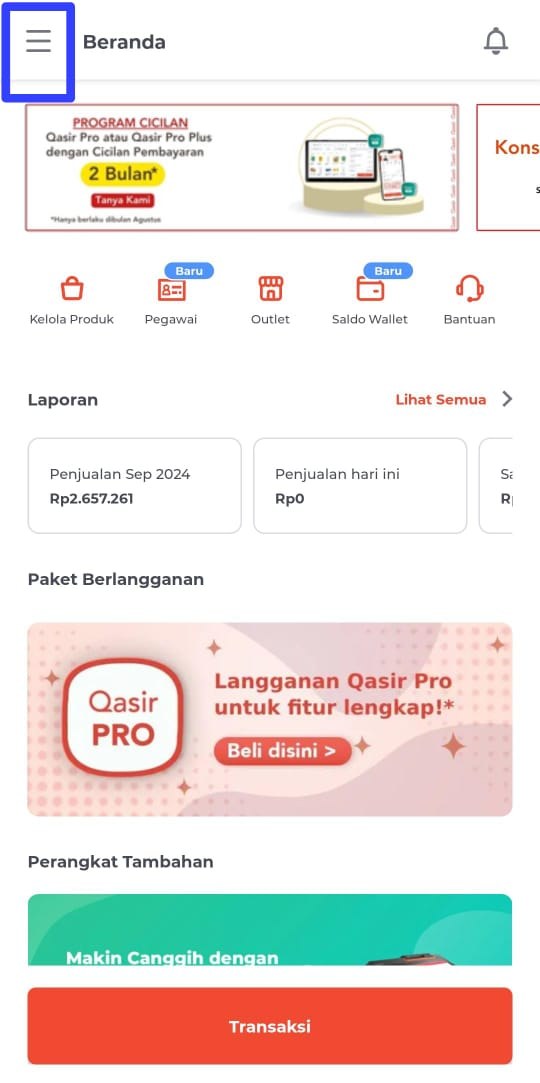
The Qasir home page, the starting point for reaching the account menu.
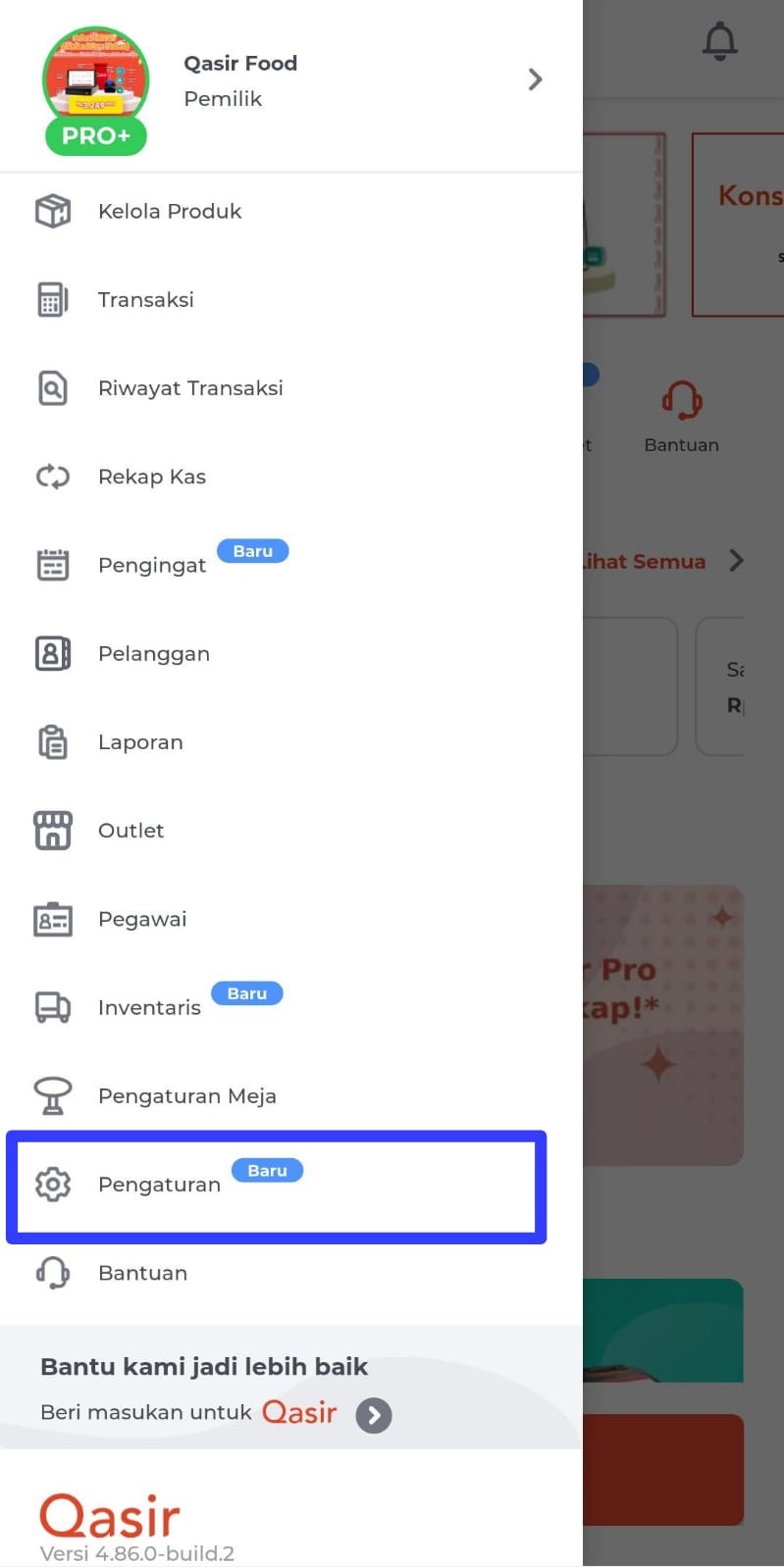
The Settings menu, where all account settings are managed.
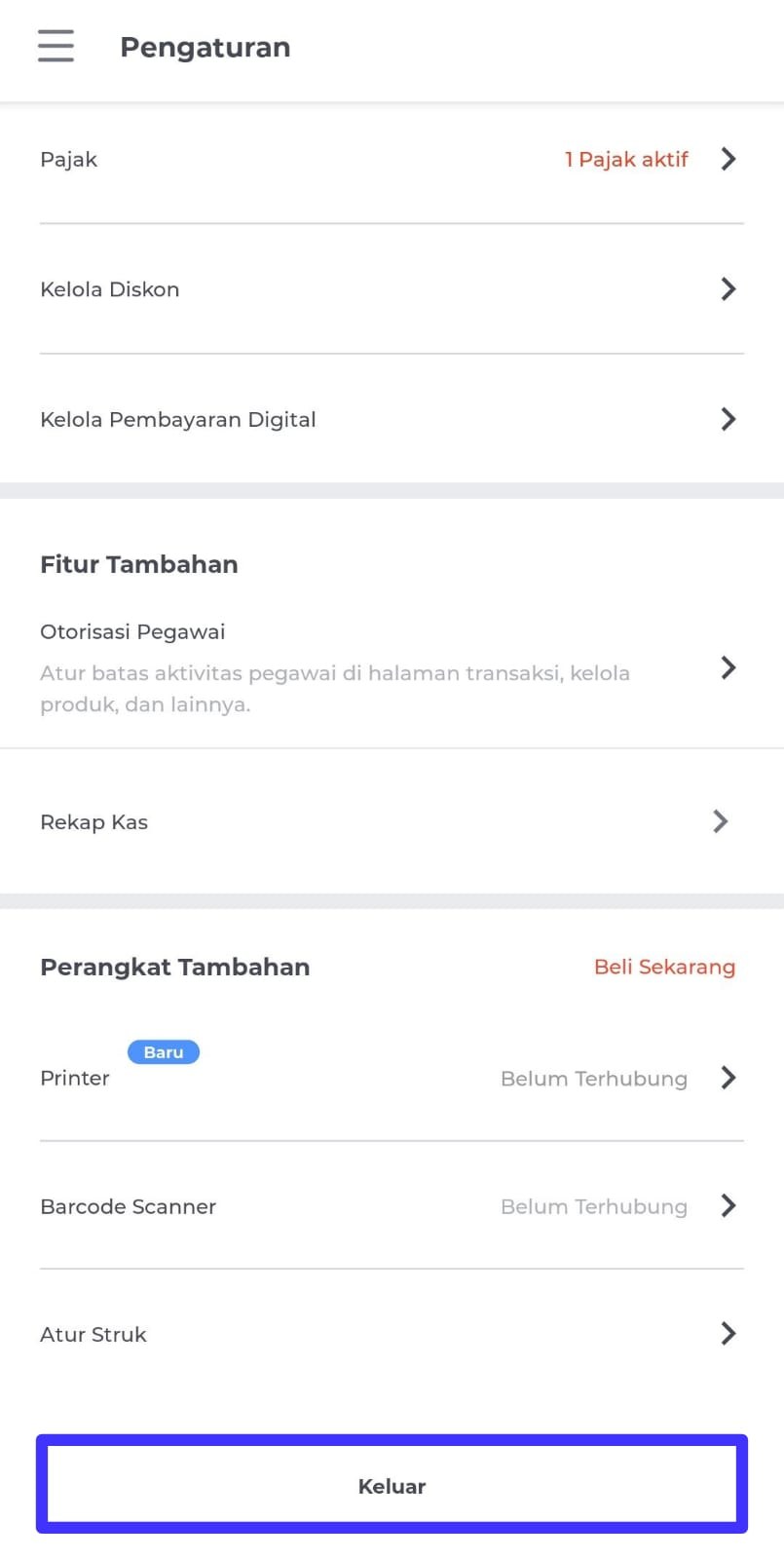
The Keluar button at the bottom of the Settings menu.
Conclusion
Learning how to log out of your Qasir account takes less than a minute, but the habit pays off daily. Logging out at the end of a shift, before switching branch accounts, and whenever staff leave keeps your sales records, cash reports, and customer data accessible only to the people you trust. It is one of the simplest forms of cyber hygiene a small business can adopt.
Combine it with habits such as changing your PIN regularly and recording who holds the cashier phone each shift. If you still track income and expenses from memory, read our guide on why you should record income and expenses instead of guessing. Accurate records plus controlled access is a solid foundation for any growing business.
Ask the Qasir Team If Something Is Still Unclear
Logging out is just one of many small features that keep your business running smoothly. Here are four worth exploring next:
- Log in to the Qasir dashboard to view business data and reports from anywhere, not just the cashier phone.
- Use Live Chat in the app to get account help from the support team without leaving your shop.
- Try the Connected Devices feature to see and remove every device logged into your account.
- Sync your data regularly so transactions and stock stay consistent across devices and sessions.
If anything is still unclear, the Qasir Customer Happiness team is ready to help. Simply open the Help feature in the app or on the Qasir website and start a Live Chat. Feel free to attach a screenshot or video so the answer is precise.
For the fastest response, read the guide to contacting the Qasir team through Live Chat before you start. Download Qasir for free on the Play Store or App Store.