
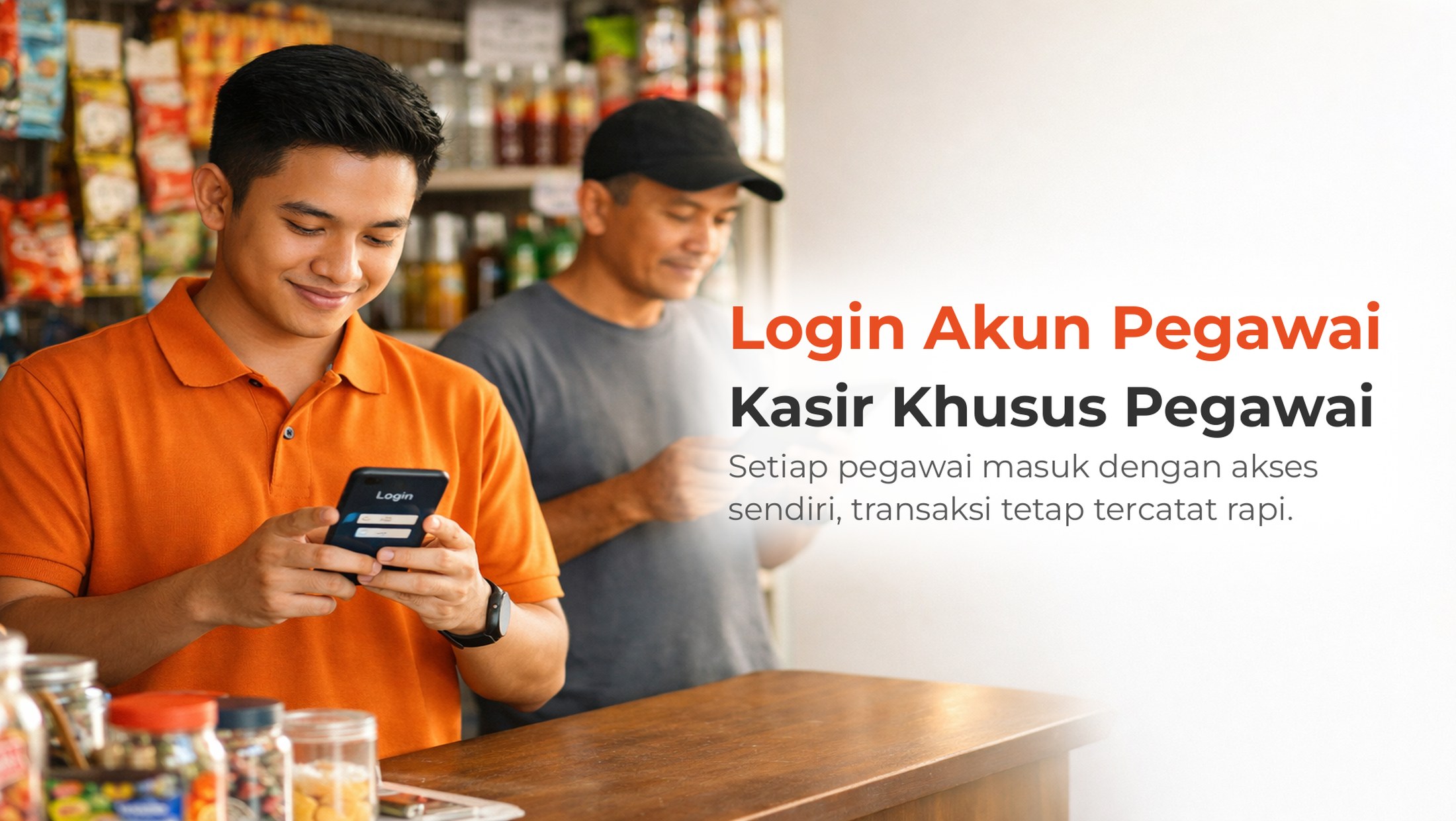
Each Merah Putih village cooperative store in Ponorogo is projected to absorb around 18 workers per store, including two cashiers and sales clerks. This news from JTV Madiun on 13 November 2026 confirms one thing: small businesses in Indonesia are increasingly run by teams, no longer by owners working alone. Law No. 27 of 2026 on Employment Protection also reshapes wage rules for micro and small businesses, so more and more Indonesian SMEs now formally hire staff.
As the team grows, an old question appears at the counter: whose phone runs the cashier app? If one app is shared with the owner's account, transactions are hard to trace back to a person. If the owner's phone is borrowed by staff to serve buyers, other business data gets exposed too. Both carry risk, especially during rush hours.
The employee login feature in Qasir answers this: one cashier app, many users, each with their own access. Each staff member signs in to the app with their own identity on their own phone, with access rights set by the owner. Transactions stay neatly recorded, and data outside their duties stays closed.
What Is the Employee Login Feature in Qasir?
Qasir only allows the account owner and registered employees to sign in to the app. So before staff can log in, the owner needs to register their details first through the employee management menu. Once registered, employees simply download Qasir on their own phones from the Google Play Store, then sign in using the phone number or email the owner registered.
The interesting part: the screen shown after signing in follows the access level. Employees with Supervisor access land on the Home screen with a business summary, which suits a store keeper or assistant owner. Employees with Operator access go straight to the Transaction screen, so cashiers can serve buyers right away without getting lost in other menus.
This separation is not just a different look. It is a simple way to protect business data: cashiers focus on serving, store keepers can watch reports, and the owner keeps full control from their own account. For the complete flow with screen previews, the official guide is available in Qasir's help article on employee login.
How to Log In as an Employee in the Qasir App
The flow is short and takes only a few minutes. Here are the steps in plain language:
- Download the Qasir app on the employee's phone from the Google Play Store.
- Open the app, the onboarding screen appears, then tap Masuk (Sign In).
- On the login page, enter the phone number (start from digit 8, since the 62 country code is already attached) or the email the owner registered, then tap Masuk again.
- The app immediately opens the screen matching the access level: Home for Supervisors, the Transaction screen for Operators.
There is only one prerequisite: the owner must register that employee first in the business Qasir account. If the number or email is not registered, signing in fails even when the details typed are correct. On the other hand, if an employee forgets their own PIN, the owner can help from the employee management menu, or follow the separate PIN reset guide.
One small habit worth suggesting: ask employees to log out at the end of each shift, especially when the cashier phone is shared. That way, the next session always starts from the right identity, and per-shift transaction records stay clean.
Operator vs Supervisor Access at a Glance
| Aspect | Operator | Supervisor |
|---|---|---|
| First screen after sign-in | Transaction screen | Home screen |
| Best for | Cashiers serving buyers | Store keepers / assistant owners |
| Main focus | Recording sales | Watching the business summary |
| Full report access | Limited | Available |
Fits Three Types of Business
- Coffee shop in Bandung — morning and afternoon baristas sign in with their own accounts, so sales per shift are visible without manual notes.
- Grocery store in Ponorogo — the cooperative store's cashier lands directly on the transaction screen, while the assistant store keeper with Supervisor access can see the daily summary.
- Motorcycle workshop in Solo — mechanics who also take payments join as Operators, so cost data and full reports stay closed to them.
Tip 1: One Employee, One Account, No Borrowing
The biggest temptation during rush hours is "just use my account for now". This habit erases the trail of who served each transaction. Employees registered with their own accounts put a name behind every sale. If there is a cash difference at the end of the day, tracing takes one step instead of guesswork.
Concrete steps: register every active employee from their first day of work, and never share login numbers between staff. When someone joins or leaves, update the list in the employee management menu the same day.
Tip 2: Match Access Rights to Duties
Access rights are like cabinet keys: not everyone needs the same one. A cashier only needs to be an Operator, since their job is serving buyers and recording transactions. A store keeper or assistant owner fits the Supervisor role better, because they need to see sales summaries and help manage data.
Concrete steps: write down each employee's duties on paper first, then decide the access level. When in doubt, start from the most limited access, and raise it only when duties grow. Reducing access after an incident is always harder than granting it gradually.
Tip 3: Make Employee Login Part of the Shift Routine
This feature works best as a habit, not a rule in a binder. Build a simple routine: at the start of a shift, the employee signs in with their own account; at the end, they log out and hand over the phone or switch accounts. This five-second routine keeps per-shift transaction records tidy automatically.
Concrete steps: stick a small reminder near the counter, such as "Sign in with your own account, sign out before you go home". After two weeks, most employees do it without being told.
FAQ
Does each employee need their own phone?
No. Employees can sign in from any phone, including a shared cashier phone. What matters is that the number or email used belongs to an employee registered by the owner.
What if an employee forgets their PIN?
The owner can reset it from the employee management menu in their account. Once a new PIN is set, the employee can sign in again without registering from scratch.
What is the difference between Operator and Supervisor accounts?
Operators are taken straight to the Transaction screen to serve buyers. Supervisors land on the Home screen showing a business summary, which suits store keepers or assistant owners who need to watch reports.
Is business data safe if an employee's phone is lost?
An employee account only opens with the registered number and PIN, and the owner can remove or change that employee's access from their own account. Losing a phone does not mean losing business data.
Can one employee work in more than one outlet?
Yes, as long as the owner places that employee in the intended outlet through the employee management menu. The details are covered in the guide to Qasir outlet management.
Business and Finance Tips
- Separate business and personal money as soon as your team grows. The more people touch the cash, the more this boundary matters for clean daily recaps.
- Record transactions per shift, not just per day. With individual employee accounts, per-shift data is available automatically and cash differences surface faster.
- Make wages clear from the start. Wage rules for micro and small businesses now have their own provisions, so a written agreement protects both sides.
- Set aside part of the profit for a business emergency fund before adding staff. A growing team starts from healthy cash flow.
Qasir Features for Employee and Cashier Management
Employee Management to Register Your Team
Owners use this menu to enter employee details before they can sign in. Every new cashier immediately gets an official identity in the system without sharing accounts.
Employee Access Rights to Limit Screens
The Operator and Supervisor settings decide which screen appears after an employee signs in. Data outside their duties stays closed, and the owner keeps full control.
Digital Cashier to Record Daily Sales
The Transaction screen lets cashiers record sales directly from a phone without notebooks. Daily revenue gathers itself in reports, ready to read anytime.
Outlet Management to Organize Branches
For businesses with more than one store, this menu helps owners place employees in the right outlet. Each branch's reports stay separate and tidy.
What the Qasir App Screens Look Like
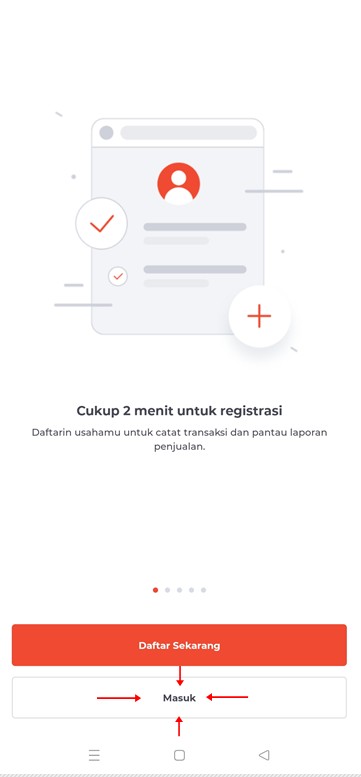
The Qasir app onboarding screen before an employee signs in.
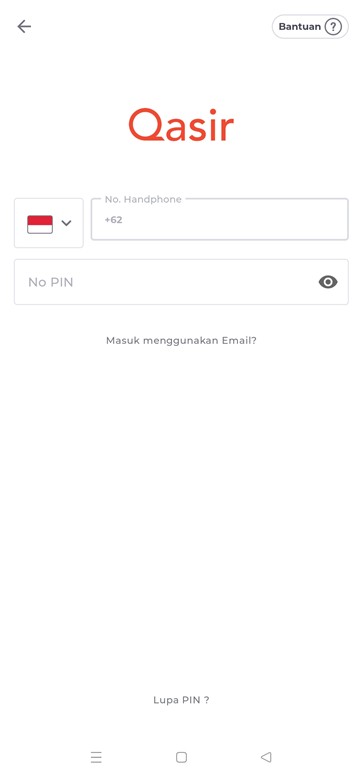
The login page where employees enter their registered phone number or email.
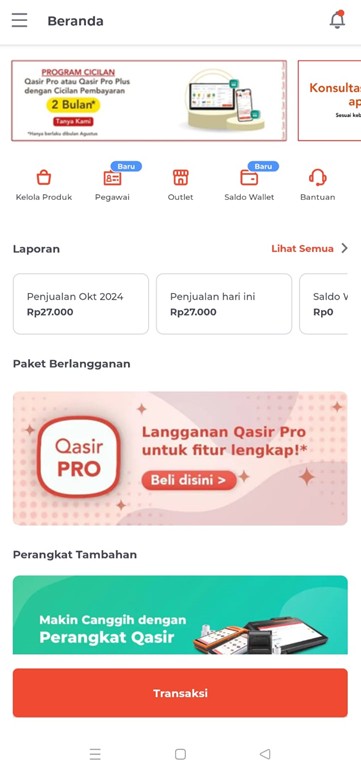
The Home screen shown to employees with Supervisor access.
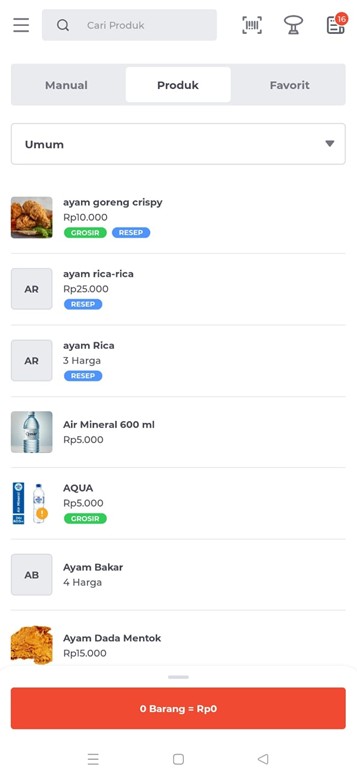
The transaction screen that opens directly for cashiers with Operator access.
Conclusion
The Qasir employee login feature solves a classic problem of SMEs that start building a team: one cashier app used by many people with no clear trail. With individual accounts and the right access levels, transactions stay recorded per person, sensitive data stays closed, and the owner monitors everything from their own account. Registration happens once; after that, it is only about the habit of signing in and out at shift boundaries.
Ask the Qasir Team If Something Is Still Unclear
- Employee management — register your team and manage their details from one menu.
- Operator and Supervisor access — decide which screen each employee can open.
- Digital cashier — record transactions straight from a phone with no extra hardware.
- Cash recap — match the money in the drawer with recorded sales at the end of each shift.
If something is still unclear about using this feature, the Qasir Customer Happiness team is ready to help. Just open the Help feature in the Qasir app or on the Qasir website, then start a Live Chat. Feel free to attach a screenshot or a video so the answer fits better. The steps are explained in the guide to contacting the Qasir team.
Download Qasir for free on the Play Store and start setting employee access in your business today.
To complete this routine, several other guides on the Qasir blog connect directly with the practices above. If your business has no account at all yet, start with how to register a Qasir account and log in. If an employee forgets their PIN, follow the guide on resetting a Qasir PIN so access returns without drama. Owners managing more than one store can read about Qasir outlet management to place employees per branch. Finally, get staff used to closing their session with how to log out of a Qasir account safely at the end of a shift, and owners can continue reading business data through logging in to the Qasir Dashboard from their own device.