

Most small business owners know the routine well: one cashier works the morning, another takes over in the evening, and nobody is quite sure whose numbers are whose. A July 2026 study on internal cash controls in micro, small, and medium enterprises — drawing on shop and food-service cases in Sleman, Indonesia — found a recurring pattern: cashiers rotate as needed without a clear division of duties, daily cash counts change hands from one person to the next, and manual record-keeping lacks any standard. At the same time, digital cash tracking among these businesses keeps growing. This is exactly where the Qasir shift change feature earns its place: handovers stay tidy because every transaction is recorded under the right staff account.
What Is the Qasir Shift Change Feature?
The Qasir shift change feature is a way to move from one user account to another inside the Qasir app, so that every transaction from that point on is recorded under the account currently signed in. It works hand in hand with the employee management feature, which lets shop owners create a separate account for each member of their team.
Picture a coffee shop with two baristas alternating at the register. Without this feature, the day's sales pile up in a single account and the owner has no clean way to tell who handled what. With a proper Qasir shift change in place, morning sales sit under the first barista's account while evening sales go to the second. Recaps become easy to trace, and if the cash drawer comes up short, the owner has a clear starting point for checking where things drifted.
The benefit goes beyond bookkeeping. When every transaction is tied to a specific employee account, accountability follows naturally. Staff are more careful with the amounts they enter, and owners can breathe easier knowing sales data never gets mixed between team members. It is the digital version of the duty separation long recommended in cash-internal-control practice — only now it runs inside the same POS app.
How to Change Shifts in the Qasir App
The steps below summarize the official guide from the Qasir Help Center article on employee shift changes, rewritten in plain language for cashiers doing this for the first time.
- Open the Settings menu. If someone is already signed in — the owner's account or another employee's — go to the Home screen and tap Settings.
- Choose Log Out. You'll find it at the very bottom of the settings page. Signing out first makes sure the previous account is fully inactive before the new one starts.
- Sign in with the next employee's phone number and PIN. Use the mobile number and PIN registered for that employee by the admin or the owner. This is why setting up an individual account for every staff member matters from day one.
- Select the outlet. After signing in, pick the outlet where the new session will run — especially important if the business has more than one branch.
- Done — the account has been switched. Every transaction from this point forward is recorded under the employee who just signed in.
To speed things up on the floor, owners can pin a short summary of these steps near the register:
| Step | Action | Note |
|---|---|---|
| 1 | Open Settings from Home | Best done between customers |
| 2 | Tap Log Out at the bottom | Previous account goes inactive |
| 3 | Sign in with the new employee's phone number and PIN | PIN registered by the admin |
| 4 | Choose the outlet | Required for multi-branch stores |
| 5 | Start ringing up sales | Recorded under the active employee |
One habit worth building: do the Qasir shift change right at the handover moment, not in the middle of a queue. It's safer, and the per-session cash count starts clean because no transaction slips into the previous account.
A Good Fit for Three Types of Business
- A coffee shop in Yogyakarta — morning and afternoon handovers get clearer because each session's transactions are recorded under each cashier's own account.
- A motorcycle workshop in Solo — the cashier can log out without touching the owner's account, so service sales data stays organized per attendant.
- A convenience store in Medan — the owner can monitor transactions from the dashboard even when two family members run the store on alternating days.
3 Tips for Organizing Cashier Shifts
A feature only works as well as the routine around it. These three simple habits help a cashier team run handovers with far less friction:
1. Set a fixed handover time. Pick a consistent cutoff — say, three in the afternoon — and treat it as the official point where one account hands over to the next. A fixed time means everyone knows when transactions start landing under the next employee, and daily recaps become easy to compare against each other.
2. Set up staff accounts before opening hours. Register each employee's phone number and PIN well in advance, not while the outgoing cashier is already standing at the register. Ready-to-use accounts make sign-in fast, keep the queue moving, and remove any excuse for borrowing someone else's login just to get through the day.
3. Keep a short handover checklist. A single sheet with the five account-switching steps, plus two lines for counting the cash drawer together, is enough to keep things consistent. A checklist ensures the handover stays tidy even when different people close out each day, and new hires never have to figure it out from scratch.
FAQ About Employee Shift Changes
Does every employee need their own account? Yes. The feature works by switching between accounts, so each employee who takes a turn at the register needs an individual one. Admin or the owner creates these accounts through the employee management feature, complete with a phone number and PIN for signing in. Without separate accounts, sales all pile up under one name and the whole point of a clean handover disappears.
What happens to transactions when the account changes? Transactions already recorded stay attached to the account that was signed in when they were made. As soon as the next employee signs in, all new sales go under that person's name. Nothing moves or gets lost — only the ownership of transactions after the switch point changes. That's precisely what makes per-session recaps so easy to trace.
Can you switch accounts without logging out of the app? No. According to the official guide, switching accounts means signing out first: open Settings, tap Log Out at the very bottom, then sign back in with the registered employee's phone number and PIN. Logging out adds one extra step, but it's exactly the step that guarantees the previous account is fully inactive before the new shift begins.
How do you set an employee's PIN? The PIN is set by the admin or owner when registering the employee's account through the employee management feature. Cashiers don't create their own PIN — they simply use the one already registered to sign in. If someone leaves or changes roles, the owner just updates that account from the admin side, and handovers at the register keep running as usual.
Business and Finance Tips
Handover routines are only one part of healthy cash management. Four more habits round out a cashier team's daily routine:
Separate the cashier and cash-counting roles. The research on cash controls in small businesses keeps flagging the same weakness: cash counted by whoever happens to be around, with no rules attached. A healthier setup keeps the person at the register from also being the only one who counts the drawer. On small teams, the owner or another colleague can simply witness the count at the end of each session.
Reconcile cash at the end of every session. Treat the moment right after the new account signs in as the counting point: tally the drawer, match it against the previous shift's sales, and write down the result. Five minutes here beats a week-long sales audit when a discrepancy only surfaces at month-end.
Record every cash discrepancy, however small. A discrepancy doesn't automatically mean wrongdoing, but an unrecorded one loses its trail. By noting the amount and the session where it occurred, owners start seeing patterns: does it cluster on a particular shift, on busy days, or around large cash transactions?
Review sales reports per employee. Because transactions are tied to individual accounts, per-employee reports become an objective input for evaluation. Compare trends across sessions — not to point fingers, but to see which shift needs coaching or better-prepared stock.
Qasir Features for Staff and Cashier Management
The shift change feature doesn't stand alone. Several other Qasir features connect with it in a cashier team's day-to-day work:
Employee Management
This feature is the gateway to the whole account system: owners create staff accounts and set access levels in one place, so every cashier has their own sign-in identity before their session starts. The full walkthrough lives in the article Qasir Employee Management: Set Up Staff Accounts.
Employee Login
Once accounts exist, employees sign in on their own with their phone number and PIN, without ever touching the owner's account. This habit keeps business data protected while staff can still ring up sales. The steps are explained in Qasir Employee Login: A Safe Cashier for Your Team.
Outlet Management
For businesses with more than one location, this feature helps owners organize branches and staff per outlet, then decide which outlet to pick at sign-in. The guide is available at Qasir Outlet Management for Shop Owners.
Cash Recap
The cash recap feature makes it easy to record money coming in and going out on a regular basis, so end-of-session counts have data to compare against rather than memory alone. Read more in Qasir Cash Recap: Easy Ways to Manage Cash In and Cash Out.
What the Qasir App Screens Look Like
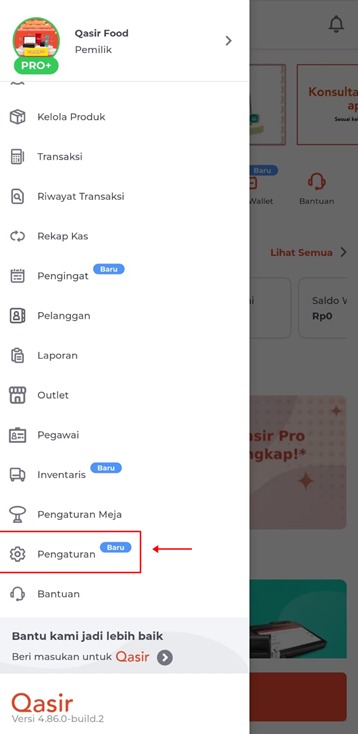
The home menu in the Qasir app, the entry point for the Settings option.
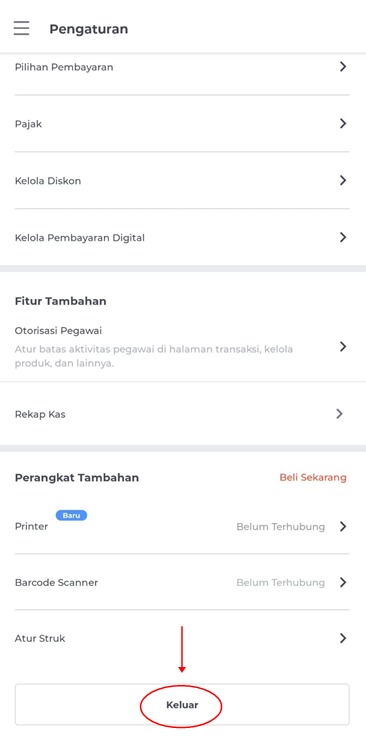
The settings page with the Log Out button that ends the current session.
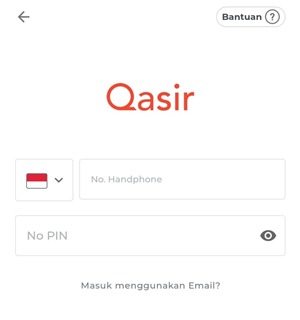
The login form: the employee signs in with the phone number and PIN registered by the admin.
Conclusion
The Qasir shift change feature answers an old problem at the register: staff rotations that blur sales records and muddle accountability. By signing out of the previous account and signing back in with the next employee's phone number and PIN, every shift's transactions land under the right name. Combine that with staff accounts set up ahead of time, a fixed handover time, and an end-of-session cash count, and your sales data becomes far more trustworthy.
For owners, the long-term payoff is tangible: per-employee reports worth reviewing, discrepancies that are easier to trace, and handovers that no longer depend on one person's memory. Start with the simplest step today — make sure every cashier has their own account — and let that small habit keep your books clean, day after day.
Ask the Qasir Team If Something Is Still Unclear
Beyond the shift change feature, several other features can support smoother day-to-day cashier operations:
- Employee Management — create a separate account for each team member, with the right level of access for each.
- Employee Login — let cashiers sign in with their own phone number and PIN instead of the owner's account.
- Outlet Management — organize branches and staff per location so outlet selection at sign-in is never confusing.
- Cash Recap — record cash in and cash out routinely as a point of comparison for end-of-session counts.
If anything about using this feature is still unclear, the Qasir Customer Happiness team is ready to help. Simply open the Help section in the Qasir app or on the Qasir website and start a Live Chat. Feel free to attach a screenshot or a short video so the team can give you a more precise answer.
More detailed switching steps are available in the employee shift change guide, and the guide to contacting the Qasir team walks you through reaching support. To start recording transactions under tidy staff accounts, Download Qasir for free on the Play Store.