

Employee management in the Qasir app is a menu for creating and setting up staff accounts: from photo, name, and job title, down to access rights and the outlet where they work. This feature was built for business owners who no longer run the register alone — more and more food stalls, coffee shops, and even village cooperatives now have workers and sales clerks serving customers every day, while the owner's own account must not be used by just anyone. With employee management, account setup and access rights can be handled from one place, without any extra app.
This trend is clearly visible in the field. Kompas on 14 November 2026 reported that KDMP Sonorejo in Kediri already runs a fully digital operation — POS cashier, stock, bookkeeping, QRIS, down to a member database. When operations have gone digital and are handled by several people at once, splitting accounts and access rights is no longer optional, but a basic need so the register keeps flowing without exposing business data to everyone.
This article walks you through how to use the employee management feature in Qasir, step by step, complete with three account setup tips, answers to the most frequently asked questions, and basic access-splitting principles you can apply to your business right away.
Tip 1: Separate the Owner Account from Staff Accounts
The most common mistake in small businesses is one cashier phone being shared through a single account — usually the owner's. As a result, everyone who touches the register can reach pricing data, products, and even sales reports. With employee management, each worker gets their own account: name and photo are clearly listed, so it is easy to trace which shift recorded which transaction.
Create an account for every person who handles the cashier phone or the dashboard. Do not use the owner's personal email for a cashier account; use a dedicated business email or a work email. This also helps when an employee resigns — their account can be deactivated without disturbing anyone else's.
Tip 2: Match Access Rights to the Job Title
Not every worker needs the same access. A cashier generally only needs to run transactions, while a supervisor or store lead needs the rights to manage products, staff accounts, and view reports. Qasir offers two access levels: Supervisor and Operator. Choose based on responsibility, not closeness — the rule is, the smaller the access you grant, the smaller the risk of a wrong click that damages data.
To understand the difference between the two in detail, the comparison table sits near the bottom of this article, sourced directly from the official Qasir help article.
Tip 3: Fill In Complete Staff Data from the Start
When you open the employee management page, several fields can be filled in: photo, name, job title, access level, phone number, email, and password. Complete all of them from the start, not just the name. The photo helps other cashiers recognize whose account is active, the phone number is useful when coordinating shifts, and a correct email plus password ensures a worker can sign in without repeatedly asking for a reset.
- Open the Employee Management page in the Qasir app.
- Fill in the staff details: photo, name, and the other fields.
- Tap "choose outlet" to set where that staff member works.
- Tap Save.
Once the account is created, later changes can still be made from the same page: updating the photo, name, job title, access level, phone number, email, down to the employee's password. You can read the official guide for these steps on the About Employee Management page.
Employee Management: Fits Three Types of Business
This feature is designed to flex across different operating models. A few examples of where it fits:
- A village cooperative in Kediri - clerks and staff can each run the register under their own account, while the board still controls access rights per person.
- A coffee shop with 2 barista shifts - one shared cashier phone can be split by shift, each barista signing in with their own account.
- A multi-staff grocery store - cashiers and stock keepers get different access rights by role, Operator for transactions and Supervisor for settings.
It must be stressed: the examples above are illustrations of usage opportunities, not a promise of results. Every business runs on different operating conditions, but the principle of splitting accounts and access stays relevant across all of these models.
FAQ
What if an employee forgets the password?
A staff password can be changed from the employee management page by the owner or a user with Supervisor access, without having to delete the existing account.
Can one staff member work across more than one outlet?
When creating an account, there is a "choose outlet" step to set where that person works. For businesses with several branches, set up the outlets per location through the outlet management feature, then assign each account its working outlet.
Is the owner account still needed?
Yes. The owner account remains the parent that manages staff accounts. Staff accounts are for day-to-day operations such as transactions and the settings granted through their access level.
Business and Finance Tips
Beyond the technical steps in the app, a few basic principles keep staff account setup tidy over the long run:
- Keep the owner account separate from staff accounts. The owner account handles bookkeeping and major settings; staff accounts handle service at the register. This split makes transaction trails easier to read when you reconcile.
- Do a cash recap per shift. With each shift signed in under its own account, sales can be recapped per account. Match the physical cash in the drawer against the app's records before handing over the shift.
- Document access rights. Record who holds which access — who may change prices, who may view reports. This simple document is very helpful when a new worker joins or a role changes.
- Secure work emails and passwords. Use a dedicated business email, build the habit of rotating passwords regularly, and never write passwords down where the register area is visible.
Qasir Features for Employee Management
Rather than keeping staff accounts and roles in a separate notebook, every setting tied to your team's operations can be handled directly in the Qasir app. Here are four connected features built for exactly that need.
Outlet Management
For businesses with more than one selling point, each branch can be managed per location in Qasir. Once the outlets are set up, placing staff accounts into a specific outlet becomes easier — the employee management page has a dedicated step for choosing the workplace. Learn more in the article Qasir Outlet Management for Shop Owners.
Staff Account Login
A shared cashier phone is no longer a problem. With the staff account login feature, every employee signs in with their own account, so every recorded transaction clearly belongs to someone. Full coverage is in the article Qasir Employee Login: Safe Cashier for Your Team.
Supervisor and Operator Access Rights
Qasir provides two access levels. According to the official help article, a Supervisor can manage product, staff, and outlet accounts, view the Transaction Summary (Rangkuman Transaksi), read more detailed transaction reports, and run transactions. Operators focus on day-to-day work at the register. In brief:
| Access Right | Supervisor | Operator |
|---|---|---|
| Manage products, staff accounts, and outlets | Yes | No |
| Run transactions | Yes | Yes |
The table above summarizes the two core role rows from the official help article. For the full detail on each role, always refer to the About Employee Management page so you pick the right access level.
Shift Transaction Reports
Supervisors have access to the Transaction Summary and more detailed transaction reports, while register operations keep running as usual. With accounts per person combined with reports per account, a business owner can monitor how the register is doing without standing behind the machine all day.
What the Qasir App Screens Look Like
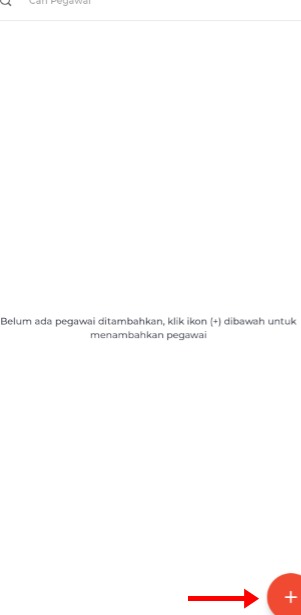
Employee list page in the Qasir app.
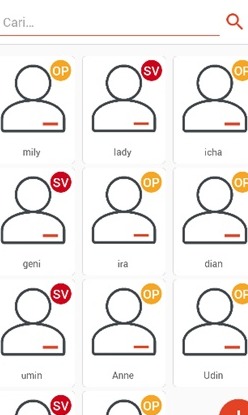
The employee data form when creating a new account.
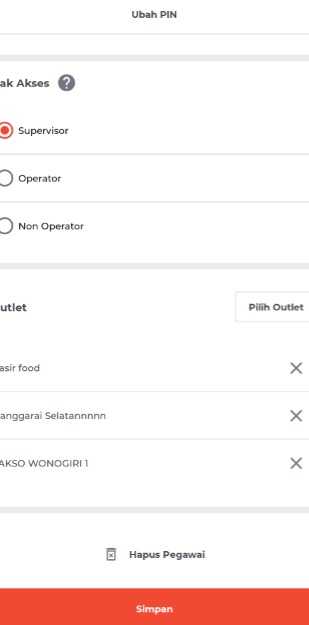
The two access rights options in the employee form.

Choosing where the employee works before saving.
Conclusion
Setting up your team's accounts in a cashier app is really simple: separate the owner account from staff accounts, grant access rights by job title, and fill in complete data from the start. The employee management feature in Qasir wraps all of those steps into one page — photo, name, job title, access level, down to the outlet choice — and pairs it with outlet management and transaction reporting. From a small business with a single register to a village cooperative that has already gone digital, tidy account splitting keeps operations orderly and the data trustworthy.
One closing thought before we wrap up: tidy account splitting is not a big one-off project, but a small habit that keeps your bookkeeping readable every single day. Start by separating the owner and staff accounts, grant access rights by responsibility, then recap the cash regularly before each shift handover. Repeat daily until the habit becomes part of your team's everyday operations.
Ask the Qasir Team If Something Is Still Unclear
Before you start creating accounts for your team, here is a recap of the features you can put to work right away:
- Employee Management — create and set up staff accounts, complete with photo, job title, and outlet choice.
- Staff Account Login — every team member signs in with their own account so shift transactions are clearly recorded.
- Supervisor and Operator Access Rights — narrow or widen access based on each role's responsibility.
- Outlet Management — manage branches and place staff per business location.
Still have a question about account setup or access rights? The Qasir Customer Happiness team is ready to help through the in-app live chat — the guide to contacting the Qasir team covers it end to end.
Download the app and try it for yourself: Download Qasir free on the Play Store.