
UMKM players in Banyumas are starting to leave manual attendance behind. Telkom University Purwokerto recently trained 20 UMKM members of Aspikmas to switch to digital administration — attendance recording, payroll recaps, to financial bookkeeping — using Microsoft Excel (Telkom University Purwokerto, 19 Nov 2026). The classic problem: attendance data, lateness, and overtime are still separate, making payroll recaps time-consuming and prone to miscalculation.
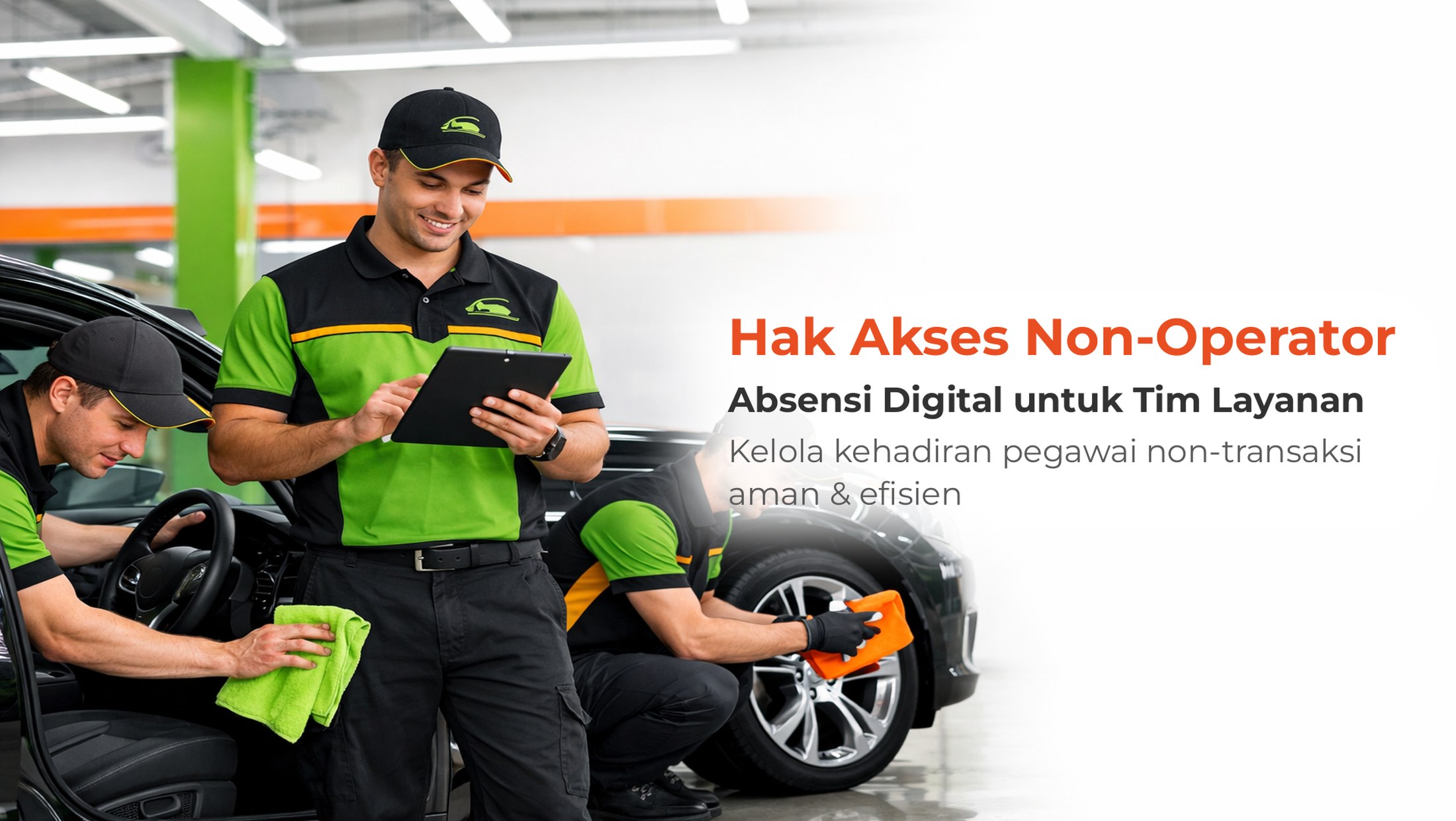
A similar problem exists in service-based businesses: car washes, salons, workshops, spas, laundries. Employees in these places never touch the cash register, but still need their attendance recorded. Qasir answers with Non-Operator access rights — a special employee account for attendance only, without access to transaction pages.
What Is Non-Operator Access?
Non-Operator access is an employee role in the Qasir app that has no transaction authority like Operator or Supervisor. Non-Operator employees can only:
- Log in to the Qasir app
- Perform attendance (check-in/check-out, selfie photo, GPS)
- View their own attendance reports & employee reports
- Log out via settings (three dots top right corner)
This fits service businesses: car washes, beauty salons, spas, motorbike workshops, laundries — where employees focus on the field, not the cash register. Unlike Operators who can open the cashier, accept payments, and print receipts, Non-Operator access is deliberately limited so transaction data stays secure and employees aren't confused by menus they don't use. This role also suits field technicians, couriers, or cleaning staff who don't need cashier access at all.
Official source: Employee Access Rights Feature - Non Operator (Qasir Help Center)
Benefits of Using Non-Operator Access
| Benefit | Explanation |
|---|---|
| Data Security | Restrict employee access to attendance only → transaction data stays safe, accessed only by authorized personnel |
| Better Control | Owners easily manage who can transact, minimizing accidental clicks or misuse |
| Operational Efficiency | Employees focus on core tasks without transaction menu distractions, productivity increases |
How to Add Non-Operator Employees
Requires Qasir Pro. In the Qasir app:
- Open Menu → Employees → Add Employee
- Fill in name, email, phone number, PIN
- Select Access Rights: Non-Operator (gray user icon)
- Select outlet (can be >1 outlet)
- Tap Save
The employee receives an invitation email. Log in using email + PIN in the Qasir app (Play Store). This process takes only 2-3 minutes per employee — much faster than creating manual accounts in spreadsheets then sharing via chat groups. Once saved, the employee can log in and attend the same day.
How Non-Operator Attendance Works
After logging in, they automatically enter the Attendance page:
- Tap Check In (requires camera & location permission)
- Take selfie photo + GPS automatically saved
- When leaving, tap Check Out (selfie + GPS again)
- Attendance history appears on the same page
Attendance rules (working hours, late tolerance, GPS radius) are set by the owner in Menu → Settings → Attendance. Non-Operator employees cannot change attendance settings. Owners can also set special holidays, automatic overtime, and late notifications to email. All these settings apply to all employees, including Non-Operators.
Non-Operator Dashboard Access
Non-Operator employees have no Dashboard web access. They only use the mobile app for attendance. Owners/admins still manage data on the web Dashboard (attendance reports, employee reports, working hour settings). This separation is intentional: field employees don't need to know daily revenue, product margins, or customer data. The attendance data collected goes straight to real-time reports accessible by the owner anytime.
Tip 1: Set Realistic GPS Radius
Don't set it too tight (e.g., 50 meters) if your outlet is in a weak GPS signal area — such as basement malls, city outskirts, or places with many tall buildings. Check GPS accuracy at your business location first, then set the radius in attendance settings. A radius that's too small causes employees to fail attendance even when they're on-site, messing up the data. Recommended default: 100-200 meters for outdoor areas, 50-100 meters for indoor with good GPS. If the outlet is in a difficult signal area, consider using Wi-Fi triangulation as a supplement.
Tip 2: Enable Attendance Notifications to Owner
In the Dashboard, enable check-in/check-out notifications for employees. Owners know in real-time who's present without opening reports every hour. Notifications can be sent to email or push notification on the owner's phone — choose whichever gets read fastest. This feature saves time when owners manage >1 outlet: no need to open the Dashboard every hour just to check attendance. Notifications also help early detection if an employee hasn't checked in by 9 AM — the owner can immediately call to confirm.
Tip 3: Combine with Shift Change Feature
If your business runs 2 shifts, use Qasir Shift Change so attendance data is separated per shift. Non-Operator employees still attend normally, owners see per-shift recaps in reports. This combo is powerful for 24-hour businesses like mobile workshops or express laundries. Read our article: Qasir Shift Change: Cashier Handover Guide. With Shift Change, owners can also set weekly shift schedules and Non-Operator employees just select their assigned shift when checking in.
FAQ
Q: Can Non-Operator employees view sales reports?
A: No. Only their own attendance & employee reports.
Q: Can they log in on >1 phone simultaneously?
A: Yes, but we recommend 1 account = 1 device for accurate attendance data (GPS & selfie from the same phone). If they switch phones, GPS data may differ and attendance becomes invalid.
Q: Is a Qasir Pro subscription required?
A: Yes. The Employee feature (including Non-Operator) is only available in the Qasir Pro package. Check latest prices at bantuan.qasir.id.
Q: Can a Non-Operator be changed to Operator later?
A: Yes. Owner changes access rights in Menu → Employees → Edit employee → select Operator/Supervisor. Changes take effect immediately without creating a new account.
Q: Where are selfie photos stored?
A: Stored on Qasir servers, only viewable by owner/admin via Attendance Reports in the Dashboard. Photo data is encrypted and complies with personal data security standards.
Business and Finance Tips
1. Separate operational costs from payroll — Non-Operator attendance data becomes the basis for calculating daily/monthly wages. Record separately from electricity, water, car wash soap costs, etc. So business margins stay clear. Use the Cash In/Cash Out feature in Qasir to record operational expenses separate from employee wages. This separation also makes it easier when calculating business income tax.
2. Build a weekly report review habit — Don't wait until month-end. Check attendance reports every week → quickly spot employees who are frequently absent/late, take action before it impacts revenue. Weekly reports also help predict next week's labor needs. If average attendance is 90% but drops to 70% this week, owners can immediately investigate the cause.
3. Use attendance data for shift planning — Look at attendance patterns over 1-2 months. If Monday-Tuesday are quiet, reduce shifts. If Saturday-Sunday are busy, add part-time Non-Operator employees. Labor cost efficiency. This data also helps negotiate performance-based wages tied to attendance. Employees with 100% attendance deserve incentives, while frequent absentees can have their hours reduced.
4. Keep attendance proof for labor compliance — Selfie photo + GPS + timestamp = digital attendance proof. Useful if there's a future labor audit or wage/overtime disputes. Digital proof is stronger than manual attendance books that can be tampered with. Save monthly attendance report Excel exports as archives accessible anytime.
Qasir Features for Non-Operator Access
Employee Feature: Manage Accounts & Access Rights
Manage employee accounts (Operator, Supervisor, Non-Operator) in one place. Reset PIN, deactivate accounts, view login history. Team management becomes centralized, not scattered in manual notes. Read also: Qasir Employee Management: Set Up Staff Accounts.
Digital Attendance: Selfie Photo + GPS
Employees attend via phone with facial verification and real-time location. Data enters reports automatically — no manual recap needed. Great for multi-outlet businesses or mobile employees (couriers, field technicians). Related article: Qasir Employee Login: Safe Cashier for Your Team.
Attendance & Employee Reports
Recap attendance, lateness, overtime, work duration per employee per period. Exportable to Excel for pay slips. Accurate, automated, ready to use.
Multi-Outlet: One Account, Many Branches
Non-Operator employees can be assigned to >1 outlet. Their attendance is recorded per outlet. Owners see each branch's performance from a single Dashboard. Learn more: Qasir Outlet Management for Shop Owners.
Conclusion
Qasir's Non-Operator access separates attendance duties from transactions — the right solution for service businesses (car washes, salons, spas, workshops, laundries) where employees don't handle the cash register. Requires Qasir Pro, but saves hours of manual recaps and reduces data leak risks. Combined with Shift Change, Outlet Management, and Employee Reports features, team management becomes centralized, accurate, and time-saving. Start managing your team more efficiently today by activating the Non-Operator feature in the Qasir app.
Ask the Qasir Team If Something Is Still Unclear
Qasir features relevant for team management:
- Employee Feature — manage accounts, PIN, Operator/Supervisor/Non-Operator access rights
- Digital Attendance — selfie + GPS, automated reports, Excel export
- Qasir Shift Change — split work hours into morning/afternoon/night shifts, separate recaps
- Outlet Management — add branches, manage employees per outlet, consolidated reports
- Employee Reports — team performance, commissions, targets, transaction history per employee
If you still have questions about how to use this feature, the Qasir Customer Happiness Team is ready to help. Just go to the Help feature in the app or on the Qasir website, then start a Live Chat. You can attach screenshots or videos for more precise answers. Read the guide to contacting the Qasir team.
Download Qasir for free on the Play Store.